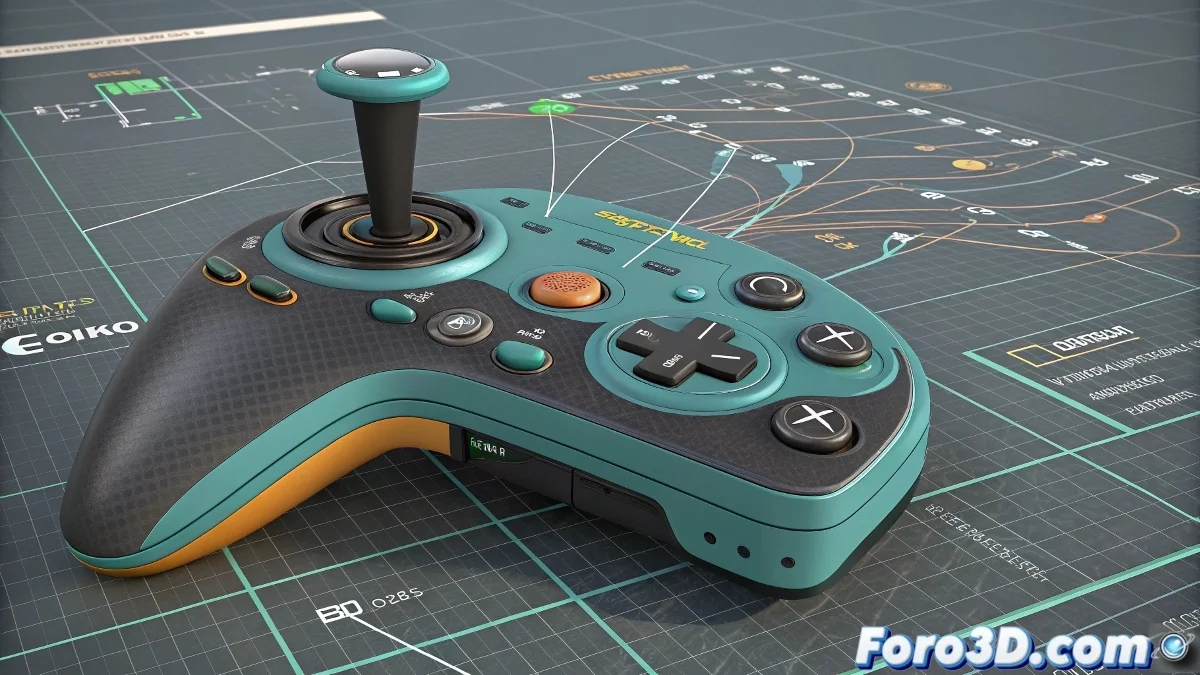
When the Gizmo Decides to Play Tricks on You
That moment when your precious control with handle becomes unmanageable because the rotation gizmo hides where you can't see it... all 3D animators have been there. 🎮 Here we reveal how to tame this behavior in 3ds Max.
Practical Step-by-Step Solutions
1. The Art of Repositioning Pivots
- Select your control object
- Activate Affect Pivot Only
- Move the pivot to a more accessible position
- Deactivate the option to save changes
2. The Magic of Helpers
- Create a Dummy in a strategic position
- Link your main control to the Dummy
- Rotate the Dummy instead of the original object
A good control system is like spaceship controls: every element must be right where your hand instinctively looks for it.
Smart Selection Tricks
- Use Local/World Reference to change the gizmo visualization
- Activate Selection Lock (space key) once selected
- Create Selection Sets for quick access
3 Mistakes That Complicate Your Life
- Leaving pivots in absurd places out of laziness
- Using unique objects for complex controls
- Forgetting that you can visually scale gizmos
Pro tip: In advanced rigs, many artists use floating controls - helpers positioned strategically that handle the real rotation, while the visual control can be anywhere. 🕹️
Now that you know these secrets, you'll be able to rotate your controls with the precision of a laser surgeon, without the gizmo playing tricks on you. And when that intern asks "how do you select that so easily?", you can respond with a mysterious smile. 😉
Bonus: For character controls, place pivots at natural joints (shoulders, elbows) even if the visual control is elsewhere. Your Graph Editor will thank you.