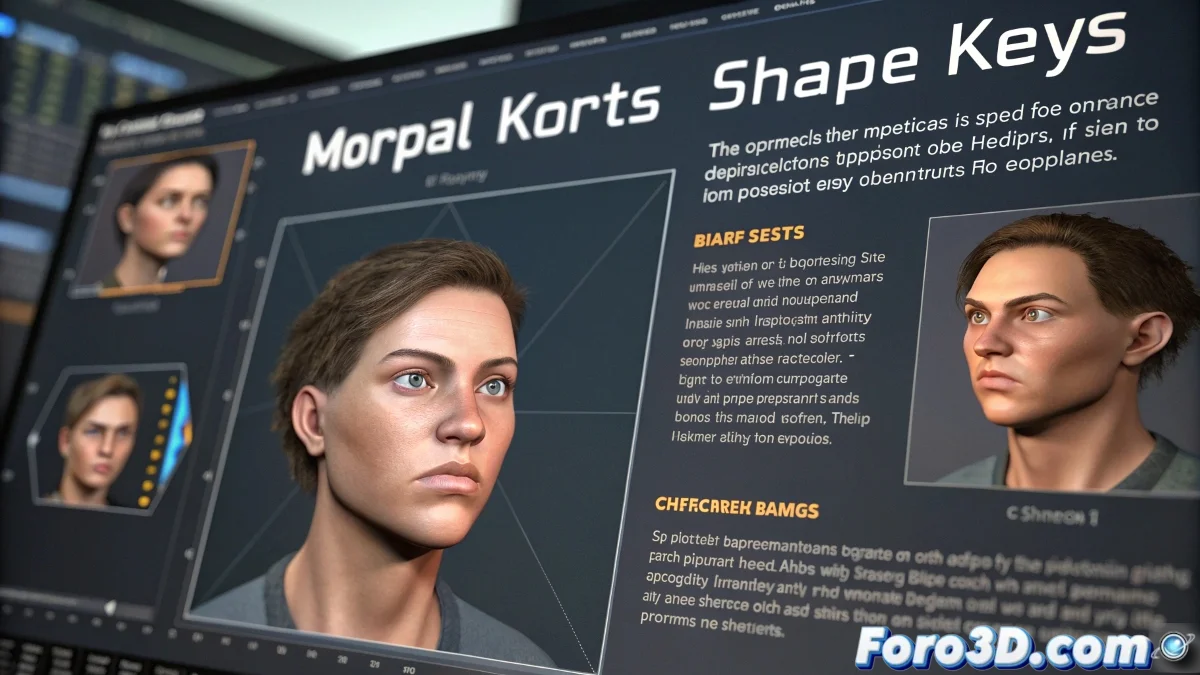
When Vertices Come to Life 😮
Shape keys are like the emoticons of your 3D models: they transform a neutral face into a festival of expressions. But beware, if you don't set them up properly, instead of a flirty wink you might end up with a Lovecraftian nightmare. Here we teach you how to tame them.
Creating Shape Keys Without Losing Your Sanity
The ABCs to avoid ending up crying in a corner:
- Basis is sacred: Never modify it, it's your zero point (like the reset button of life)
- Name as if your future depends on it: "Key_23" won't tell you anything at 3 AM 🕒
- One deformation per key: Like cocktails, mixing comes later
Solutions for Common Problems
When your shape key looks possessed:
"If your model looks like it's melting, you probably forgot to apply transformations. It's like baking a cake without preheating the oven - disaster guaranteed"
- Rebellious vertices? Freeze transformations first
- Crazy deformations? Check your base mesh
- Only one key possible? You're editing the basis by mistake
Professional Facial Animation Techniques
So your characters don't look like robots:
- Combine keys like a DJ mixes tracks 🎧
- Use drivers for intuitive controls
- Create libraries of frequent expressions
Optimized Workflow
The secret of professional studios:
- Work by layers of expressions (mouth, eyes, eyebrows)
- Test blends before animating
- Document your key combinations
And remember: if something goes wrong, you can always say it's a new style of abstract animation. After all, Picasso didn't paint "normal" faces, right? 🎨