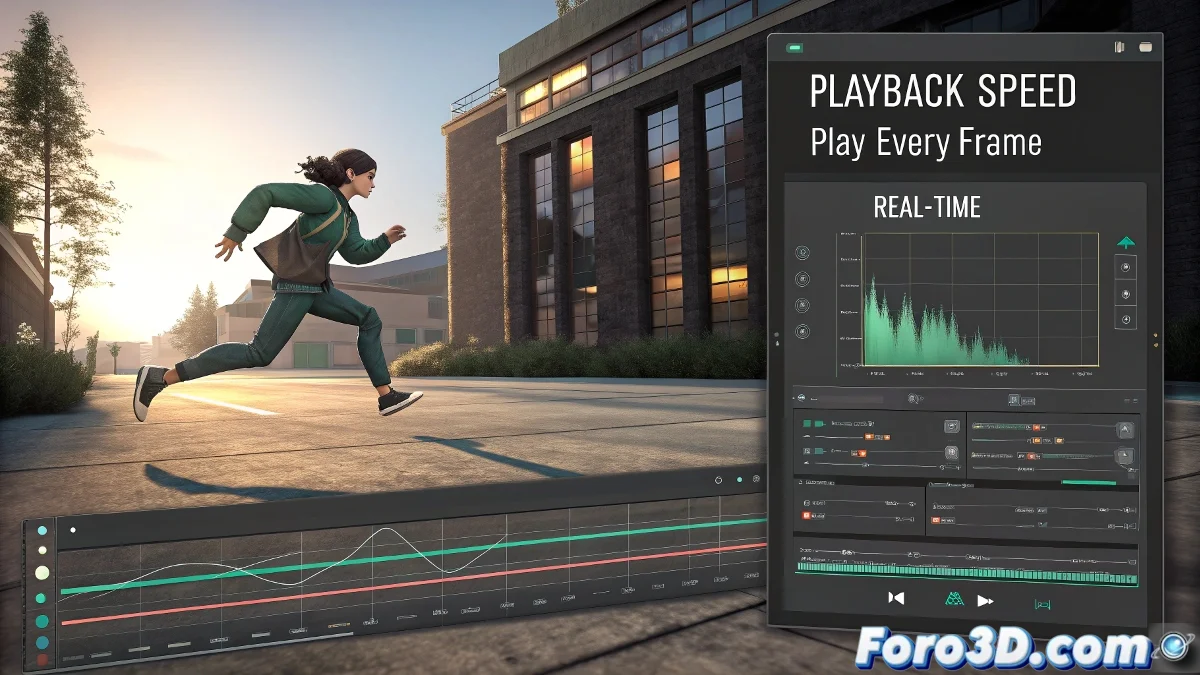
When Maya Decides Your Animation Should Be a Speedrun Video
You've spent hours perfecting every movement, but when you play back your masterpiece, Maya turns it into a sped-up TikTok clip. 😱 The culprit is often that little setting called Play Every Frame, which makes Maya ignore your precious FPS rate as if the laws of time didn't exist.
The Solution in Three Steps (Before Throwing Your Keyboard)
- Right-click on the clock icon in the timeline
- Select Playback Speed > Real-time [24/25/30 fps]
- Verify that Play Every Frame is disabled
"In Maya, time is relative... literally. Set it up or suffer the consequences." — Einstein's Law for Frustrated Animators
Saving Already Affected Animations
If you discover the problem after animating:
- 🗝️ Graph Editor: Select all keyframes and scale on the time axis
- 🗝️ Time Slider: Manually adjust keyframes
- 🗝️ Trax Editor: For advanced non-linear tweaks
A pro tip: duplicate your scene before adjusting timing, so you have a backup in case the calculations don't add up. Maya can be fickle with time operations. ⏳
Advanced Tools for Time Control
For complex projects:
- ⏱️ Time Warp: Create custom acceleration/deceleration curves
- ⏱️ Playblast Options: Configure specific FPS for previews
- ⏱️ Render Settings: Verify they match your timeline configuration
And remember: if after all this your animation still looks like it's from a 2x speed video, you can always say it's an avant-garde artistic style. After all, in the 3D world, sometimes bugs become features... until the client complains. 😅