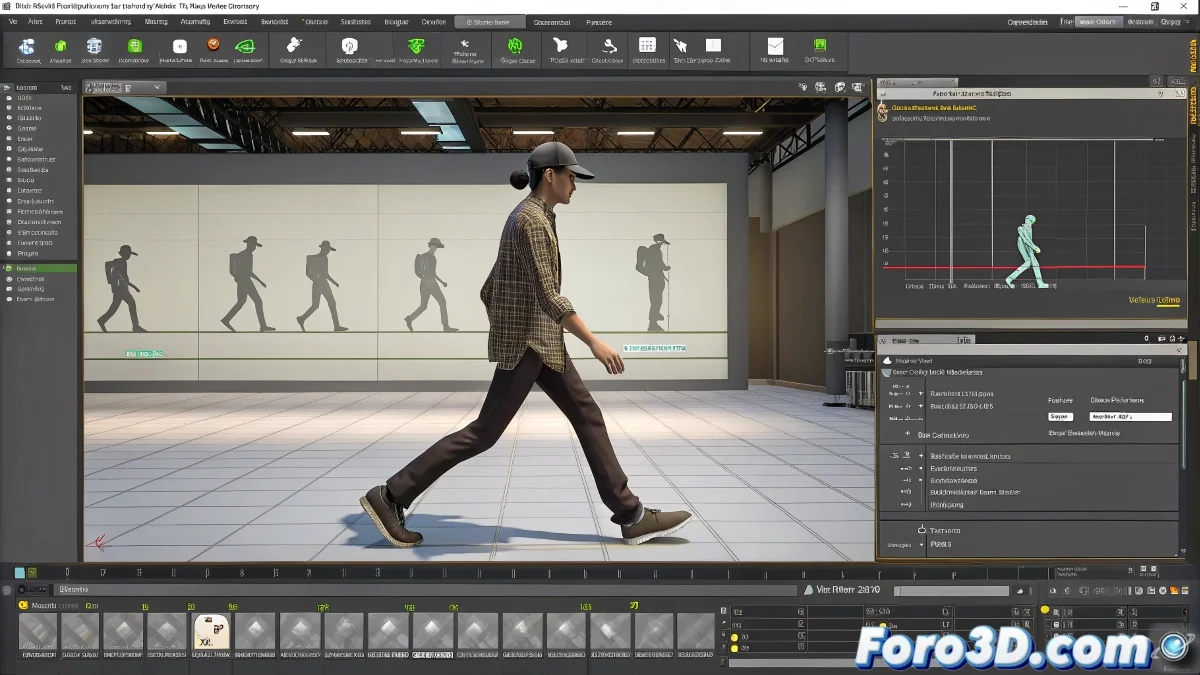
When Biped Takes Away Tangents... But Not Your Creativity ✨
Returning to Biped after a while is like reuniting with a stubborn old friend: it knows how to help you, but in its own way. Here's how to tame its quirks for smooth animations.
🛠️ The Tools You DO Have:
- Biped Workbench:
- Access from Motion panel > Biped Apps
- Adjust Tension/Continuity/Bias per axis
- Control smoothing between keys
- Footstep Mode (for cycles):
- Automatically generates steps
- Then edit timing and height in Footstep Operations
- Layer Mode:
- Overlay secondary animations
- Perfect for non-destructive corrections
"Animating in Biped is like dancing tango: you have to follow its rules, but you can create art within them"
🎯 Professional Techniques Without Tangents:
| Problem | Biped Solution | Where to Adjust |
|---|---|---|
| Robotic movements | Increase Continuity | Workbench > Key Info |
| Abrupt transitions | Use Layer Mode with easing | Motion panel > Layers |
| Repetitive cycles | Vary Footstep Timing | Footstep Operations |
💡 Optimized Workflow:
- Record real references (video or mocap)
- Block key poses in Frame 0, 5, 10...
- Adjust interpolation in Workbench
- Refine with Layer Mode
- For walks: use Footstep Mode first
🚫 Mistakes to Avoid:
- Forgetting Key Info: Where your settings live
- Overdoing easing: Biped already adds smoothing
- Ignoring presets: They save initial time
🔁 Alternative for Purists:
If you really need curves:
- Animate in Biped
- Export as FBX
- Import into new scene
- Edit curves freely
Biped can be stubborn, but as a good animator, you know that even limitations inspire creativity. Bring those characters to life! 🎬