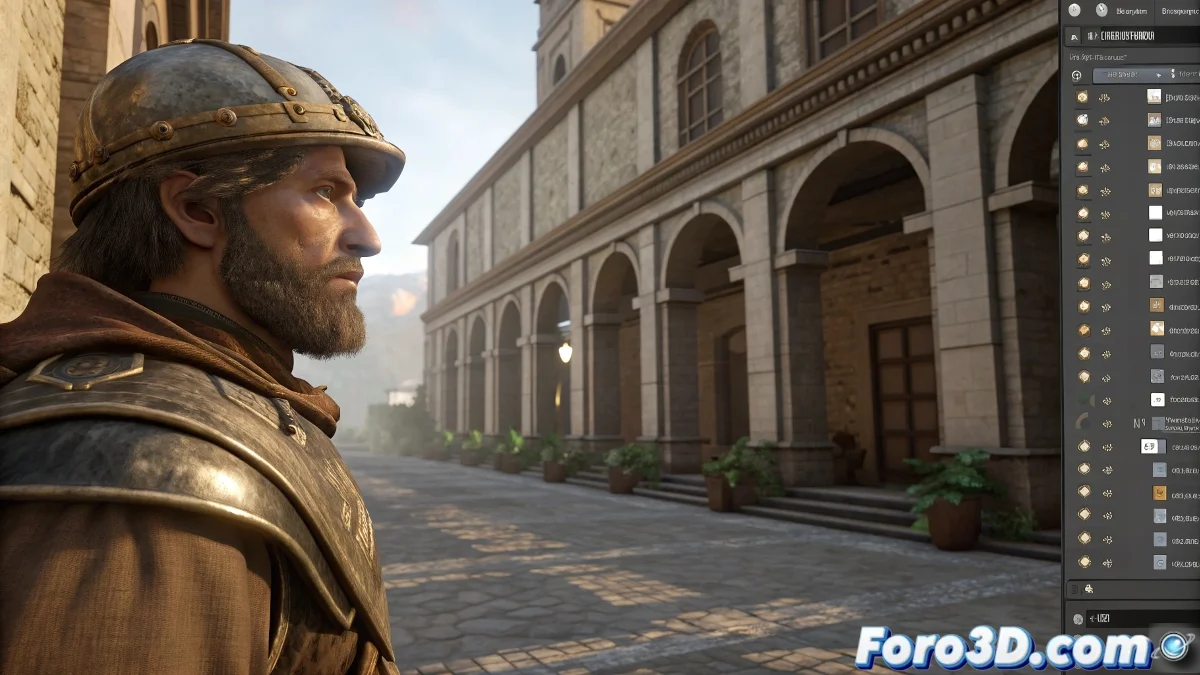
The First Step Towards Architectural Photorealism
When you move from AutoCAD to 3ds Max and face the task of loading external materials and textures, you are taking a crucial leap towards creating professional architectural visualizations. The transition from technical drawing to photorealistic rendering may seem overwhelming at first, but understanding how to manage material libraries is one of the most important skills you will develop as an architect in the 3D world. The fact that you have a CD with architectural materials is an excellent starting point, as these specialized libraries contain textures and configurations optimized specifically for architecture projects that far surpass the program's default materials.
File System Preparation
Before loading any material into 3ds Max, you need to properly organize your files in the system. This not only facilitates the initial loading but prevents future problems with broken paths and missing textures.
- Copy all the content from the CD to a folder on your hard drive
- Create a logical folder structure for different types of materials
- Verify the file formats compatible with your version of 3ds Max
- Organize by categories such as woods, stones, metals, etc.
Methods for Loading Materials into the Editor
There are several ways to import external materials depending on how the library on your CD is structured. Each method has its advantages based on the type of files it contains.
Loading external materials is like expanding your color palette: suddenly you have a whole universe of visual possibilities at your disposal
- MAT files preconfigured material libraries
- Loose textures images you can assign manually
- Import scripts automated for specific libraries
- Drag and drop files directly into the material editor
Bitmap Paths Configuration
One of the most critical and often forgotten steps is to correctly configure the texture paths so that 3ds Max can find them when rendering.
Mastering material management in 3ds Max will completely transform the quality of your architectural visualizations 🏛️. Every texture and material you add to your personal library not only enriches your current project but builds a valuable resource you can use in all your future work as a digital architect.