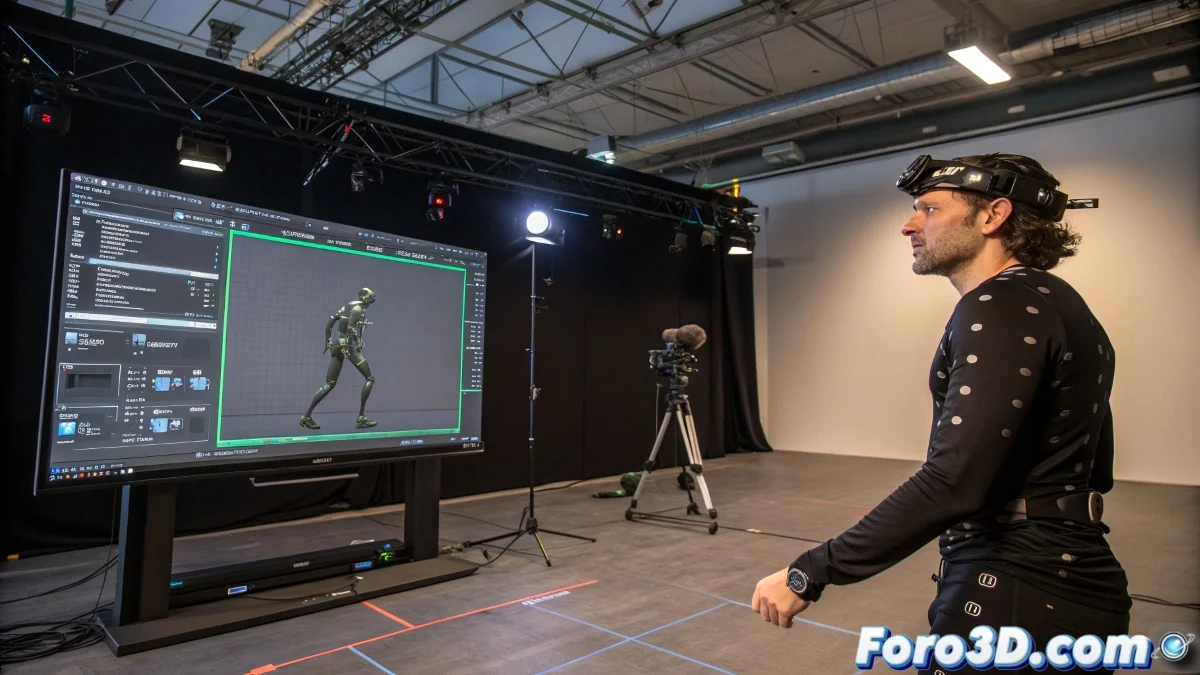
The Bridge Between Real and Digital Motion in XSI
Integrating motion capture into XSI Softimage is a process that transforms raw human performance into usable digital animation 🎭. Although XSI (now Softimage) is not the main mocap hub like MotionBuilder can be, its powerful animation and deformation tools make it an excellent platform for refining and applying captured data. The journey involves a round trip: starting with cleanup in specialized software and ending with fine-tuning within the XSI ecosystem, ensuring every movement feels organic and fits perfectly with the character model.
The Crucial Preparation in MotionBuilder
Everything starts in MotionBuilder. This is where raw mocap data—usually in formats like BVH or FBX—is imported and subjected to a rigorous cleaning process. The first step is to ensure the capture skeleton is correctly aligned and scaled to match the proportions of the target character in XSI. Then, filters are applied to smooth out noise inherent in the capture and common artifacts like foot skating (foot sliding) or geometry penetrations (hands passing through the body) are corrected. MotionBuilder's tools like Story and Characterization are invaluable for this phase.
Uncleared mocap data is like raw diamonds, valuable but needing carving to shine.
Export and the Importance of Format
Once the animation is clean and stable, it's time to export it. FBX is the preferred format for its ability to reliably preserve rigs, bone hierarchies, and animation data. When exporting, it's crucial to verify that the Bake Animation option is enabled. This converts the entire animation into simple keyframes, making it more portable and less dependent on the original capture system. This ensures XSI can interpret the data without issues.
Import and Mapping in XSI
Within XSI, the FBX file import process is usually straightforward. However, the most critical step is bone mapping. If the bone names in the mocap file exactly match the bone names in your XSI character rig, the animation will apply automatically. If not, XSI provides tools to manually map each source bone to its target bone. This is often the most time-consuming part, but it's essential for the transfer to work. A poorly mapped bone will result in a limb animating in the wrong direction.
Fine-Tuning in XSI's F-Curve Editor
Even the cleanest capture can benefit from artistic tweaking. This is where XSI's F-Curve Editor shows its power. It allows:
- Smoothing curves: eliminate residual micro-vibrations that can give a jittery feel to the movement.
- Adjusting timing: stretch or compress sections of the animation to emphasize an action.
- Correcting poses: edit individual keyframes to fix a hand going out of place or an unnatural posture.
- Adding exaggeration: apply animation principles to make the movement clearer and more expressive.
Recommended Workflow
For seamless integration, follow this pipeline:
- Cleanup in MotionBuilder: import, scale, filter, and correct artifacts in the mocap data.
- Export in FBX: export the baked animation with the bone hierarchy.
- Import in XSI: import the FBX into an empty scene first to verify everything looks correct.
- Bone Mapping: use XSI's renaming or mapping tools to connect the mocap bones with your character's bones.
- Application and Adjustment: apply the animation and use the F-Curve Editor for fine-tuning and removing any residual sliding.
- Integration with Deformations: ensure the character's skinning responds well to the new animation and make weight corrections if necessary.
By mastering this workflow, you'll infuse your characters with the life and naturalness that only real motion capture can provide, all while maintaining the final artistic control that XSI offers. And when that character finally runs and jumps with the agility of a real actor, the effort will have been worth every second 😉.