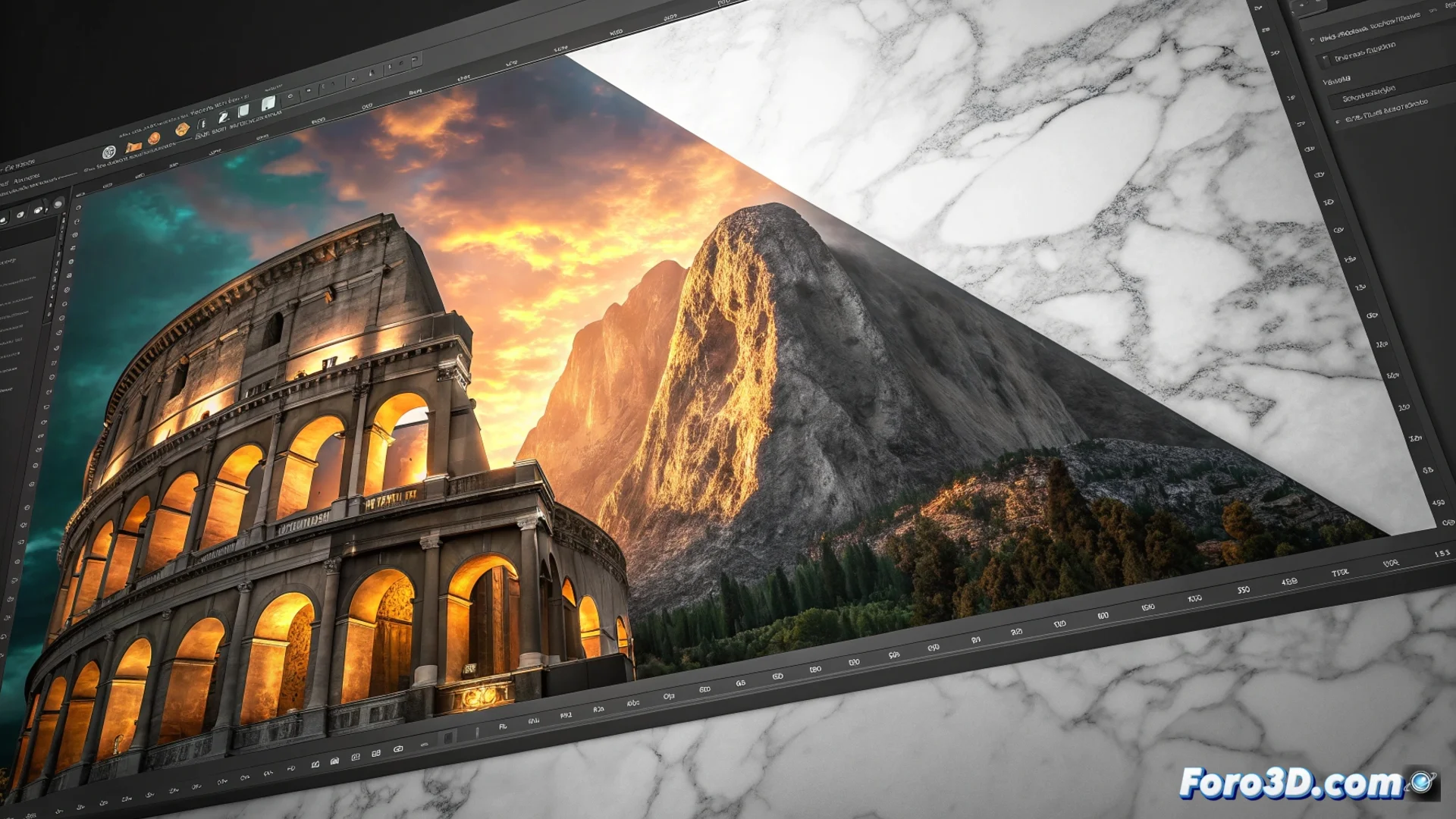
How to Use a Clipping Mask in Digital Editing
In the image editing workflow, the clipping mask is a fundamental tool for controlling the visibility of a layer using the shape of another. This method preserves all original data, offering total flexibility to adjust the design later. 🎨
The Basic Principle of Masking
The technique works by linking two layers. The bottom layer, which acts as the mask, determines which areas of the top layer remain visible. Only the opaque pixels of the mask allow the content of the top layer to be seen, adopting its exact transparency and outline. It is a non-destructive process par excellence.
Main Use Cases:- Apply textures or patterns within defined contours, such as vector shapes or typographic text blocks.
- Combine multiple images precisely without having to permanently erase or delete sections.
- Work with elements that require frequent changes, as the mask and content can be modified separately at any time.
Using a clipping mask is the digital equivalent of placing a physical stencil over a surface to paint: you define the work area without altering what is underneath.
Setting Up a Clipping Mask Step by Step
To create this effect, organize your layers in the corresponding panel. The layer containing the visible content (like a photograph) must be immediately above the layer that defines the clipping shape (like text).
Linking Process:- Select the top layer and look for the "Create Clipping Mask" option in the layers panel menu.
- A quick alternative method is to hold down the Alt key (Option on Mac) and click on the dividing line between the two layers in the list.
- A small arrow and indentation on the top layer will confirm that the clipping is active. Now, if you move or scale the mask layer, the visible content will adjust automatically.
Avoiding Common Mistakes
An unexpected result occurs if you try to use a completely transparent or empty layer as a mask. In this case, the top layer will be completely hidden, as there is no opaque area defining the visibility. Always ensure your mask layer has visible pixels or a defined alpha. Mastering this technique allows you to mask content efficiently and reversibly, a pillar for any designer or digital artist. 💡