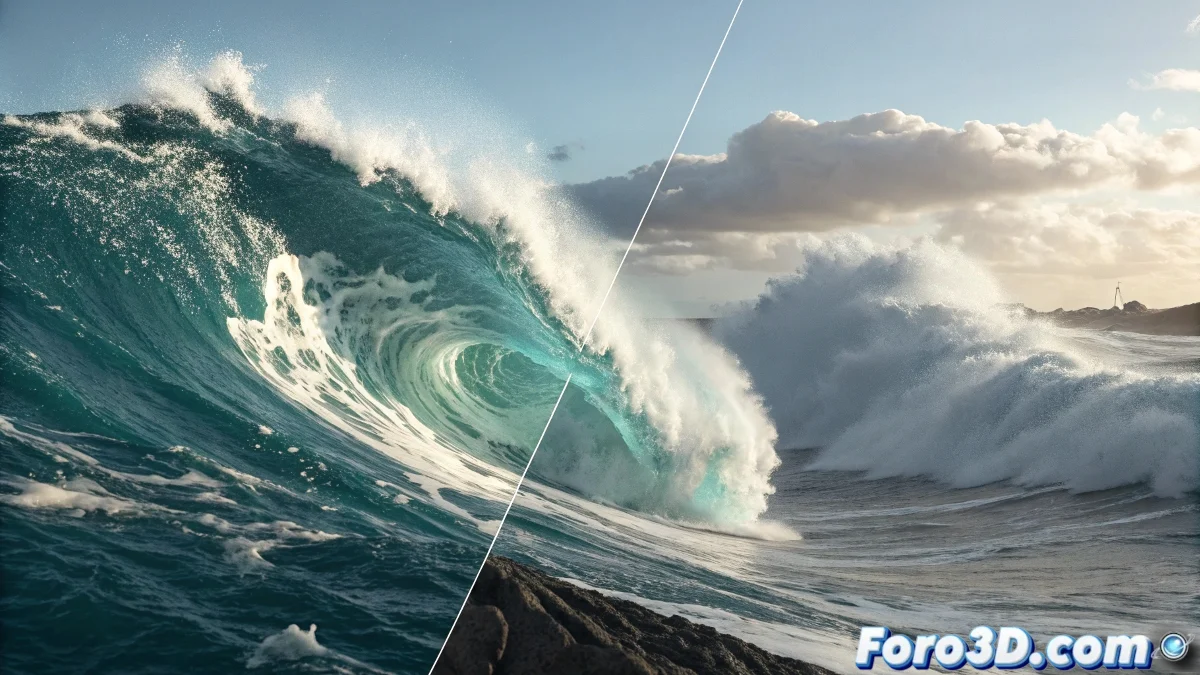
When Foam Decides to Be Indivisible
The problem of separating the foam mesh in RealFlow is one of those challenges that can make even the most experienced artists reconsider their life choices. The frustration is understandable when you've achieved a perfect simulation with fluid, splash, and foam, but when it comes time to export for compositing, the foam turns into a digital ghost that refuses to be meshed separately. You've run into one of RealFlow's most common but least documented limitations.
Your intuition about avoiding Mental Ray and sticking with V-Ray is spot on - layer-based rendering is essential for professional control in post-production. The fact that only RenderKit works for you but with prohibitive times indicates you're close to the solution, but you need to optimize the approach.
Setting Up Specific Meshers for Each Element
The key is to create independent meshers for each particle type. Don't use a single mesher for everything. Create a specific Particle Mesh for foam: go to Elements > Add > Mesh, rename it to "Foam_Mesh" and in its properties, in the Particles tab, disable everything except Foam. This ensures that only foam particles are processed by this mesher.
Repeat the process for splash and fluid, creating dedicated meshers for each. In each mesher's properties, go to Particles and select only the corresponding particle type. This separation is crucial for exporting independent meshes.
- Independent Mesher for Foam (only foam enabled)
- Independent Mesher for Splash (only splash enabled)
- Independent Mesher for Fluid (only fluid enabled)
- Clear naming to identify each mesher
A perfect export is like good organization: each element in its corresponding folder
Optimizing Meshing Parameters for Foam
Foam is particularly difficult to mesh because it has very small and scattered particles. In the foam mesher, adjust Polygon Size to smaller values (0.5-1.0) and Filter to 2-3 for proper smoothing. The Radius parameter should be slightly larger than that of the foam particles to ensure a continuous mesh.
To reduce computation time, enable Relaxation with low values (0.1-0.3) instead of aggressive filtering. This smooths the mesh without the excessive computational cost of more intense filters. Also consider using Blend Factor at 95-98% for better particle bonding.
- Polygon Size: 0.5-1.0 for detailed foam
- Filter: 2-3 for balanced smoothing
- Relaxation: 0.1-0.3 for optimization
- Blend Factor: 95-98% for cohesion
Exporting for 3ds Max and V-Ray
To export to 3ds Max, use the BinMesh (.bin) format, which is more efficient than SD format. In each mesher, go to Export Central and enable export as BinMesh. Make sure each mesher exports to a separate folder to maintain organization.
In the export options, enable Animated Mesh and One File Per Frame. This will create a sequence of meshes that 3ds Max can import as an animation. For foam, consider exporting every 2-3 frames if the simulation is very dense, as foam usually has smoother motion.
- Format: BinMesh (.bin) for efficiency
- Animated Mesh enabled
- One File Per Frame for sequences
- Separate folders by element type
Solution with Hybrido Mesher for Complex Foam
If the traditional Particle Mesh doesn't yield results with foam, try the Hybrido Mesher. Although designed for hybrid fluids, it can handle dense foam better than the traditional mesher. Configure the Hybrido Mesher with Particle Influence specifically adjusted for foam particles.
In Hybrido Mesher, use a Resolution lower than for the main fluid (50-70% of the fluid's resolution) and enable Foam and Bubbles in the specific options. This can generate more coherent foam meshes although with a different appearance.
- Hybrido Mesher as an alternative
- Resolution: 50-70% of main fluid
- Particle Influence adjusted for foam
- Foam and Bubbles enabled in options
Workaround for Extreme Cases
When direct meshing fails, consider exporting foam particles as instanced geometry. Instead of meshing, export the foam particles and use an instancing system in 3ds Max with small spheres or pre-modeled foam geometry. This gives absolute control but loses the cohesion of a continuous mesh.
Another technique is to use Particle Flow in 3ds Max to recreate the foam from the exported particles. Import the foam particles into Particle Flow and apply a mesher within 3ds Max, which can be more efficient for this specific type of particles.
- Geometry instancing for foam in 3ds Max
- Particle Flow with 3ds Max internal mesher
- Pre-modeled geometry for foam particles
- Manual compositing in very specific cases
Solving this challenge will allow you to create professional compositions with total control over each element of your simulation. Because in RealFlow, even the most rebellious foam can learn to behave when you know the right meshers and parameters 😏
Verified Workflow
For successful foam export:
1. Dedicated mesher only for foam
2. Particle Filter: Only Foam enabled
3. Polygon Size: 0.5-1.0, Filter: 2-3
4. Export: BinMesh, separate folders
5. In 3ds Max: Import separate sequences
6. V-Ray specific materials per element