How to Remove an Animation in 3ds Max and Start Over
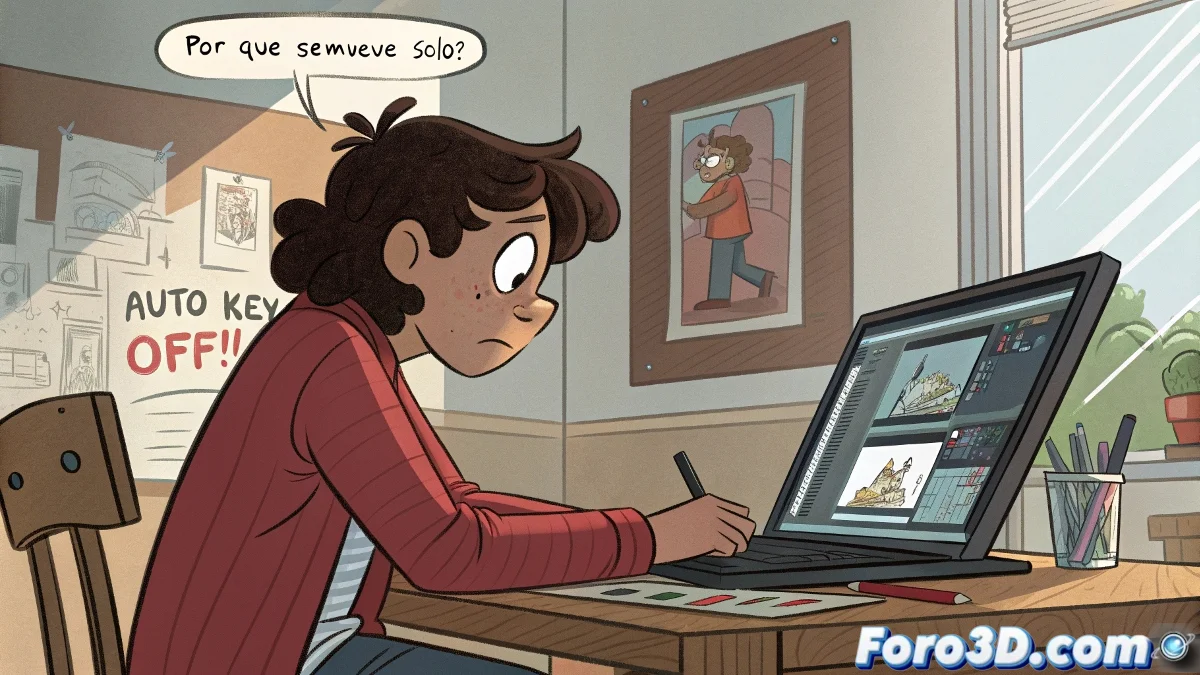
If you're starting out with 3ds Max, it's completely normal to accidentally create an animation and not know how to remove it. It's common that, when moving objects with Auto Key activated, everything seems to come to life on its own. But don't worry, there are simple solutions for this.
Why is Your Object Still Moving?
You've probably activated the animation with Auto Key or Set Key, and 3ds Max has recorded positions on the timeline. To leave the object completely still and start from scratch, follow these steps:
- Select the object.
- Open the Motion panel (icon with a gear or from the Command Panel tab).
- Click on Trajectories if you want to see its animated path.
- Open the Curve Editor (Graph Editors > Track View - Curve Editor).
- Select all the object's keyframes and press Delete to remove them.
Quick Solution Using the Track Bar
If you're looking for a quicker solution, use the Track Bar:
- Right below the timeline, where the red dots appear, right-click on them and choose Delete Key.
- If there are many keyframes, you can drag a selection and delete them all at once.
With that, the object should stay still as if nothing had happened.
Another Quick Method if All Else Fails
If everything above fails, try this:
- Select the object.
- Press Ctrl + X to cut it.
- Press Ctrl + V to paste it again.
This pastes a copy without any animation. The object returns with its geometry, but clean, as if it had never danced.
Tip for the Future
Always be aware if you have Auto Key activated (red button). If it's on, every change you make in the viewport will be recorded as animation. If you don't want that, make sure to turn it off before moving objects.
Animating by accident is the 3D equivalent of sending a voice message without realizing it. Your object already spoke on its own, but luckily in Max you can erase its past. Not everyone has that option! 🎤