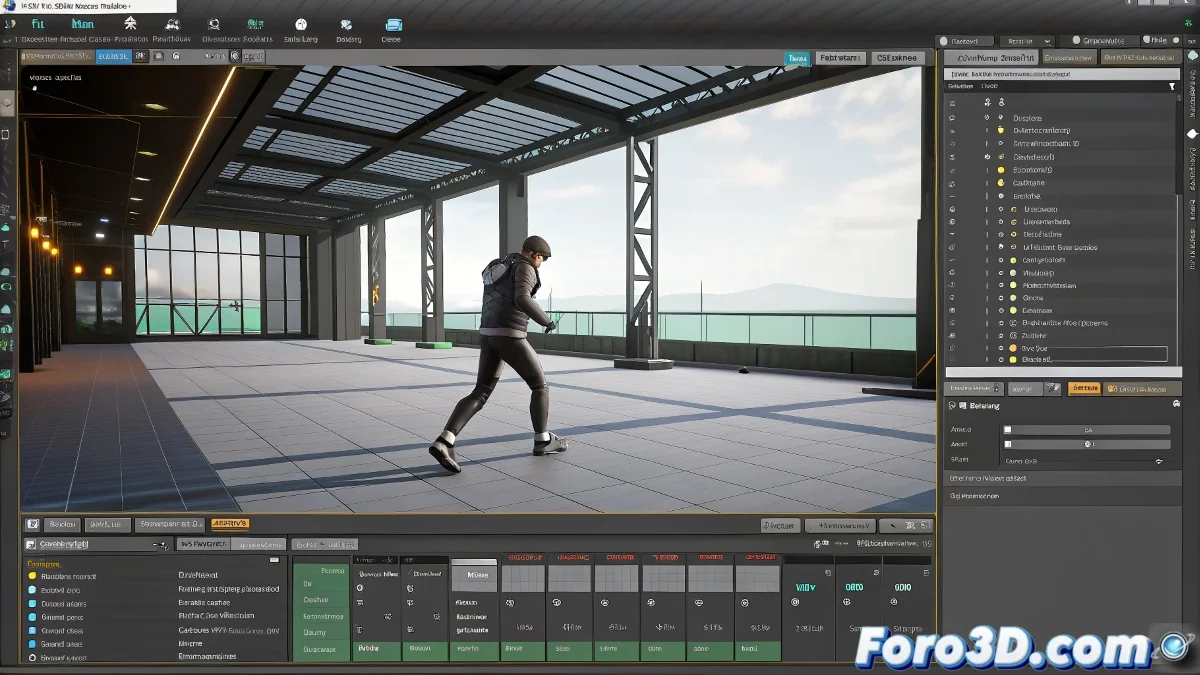
Solving the Position Problem When Loading .bip Files in 3ds Max
Ah, the classic unwanted Biped dance! 💃🕺 When you import your .bip files and your character decides to take a walk without permission, it's normal to want to scream. But don't worry, there's a solution for this annoying little problem.
Methods to Maintain the Initial Position
You can try these options to keep your Biped where it should be:
- Before importing: Activate Figure Mode to lock the base position
- During loading: Use the Load Buffer option and then Paste from Buffer
- After importing: Apply Move All Mode to relocate it manually
"A Biped that moves on its own is like a hyperactive child: it needs clear boundaries and someone to watch it"
Professional Tricks for Greater Precision
If you need millimeter accuracy:
- Create a dummy helper in the desired position
- Use Align to match the Biped's position
- Apply Key Info to fix the initial position
Remember that the Motion Mixer can be a bit temperamental. Sometimes it saves position data that you can't see at first glance. If everything fails, try resetting the position with Biped Playback before importing. 🔄
And finally, if nothing works... you can always say it was a special teleportation effect. Creativity to the power! 🚀✨