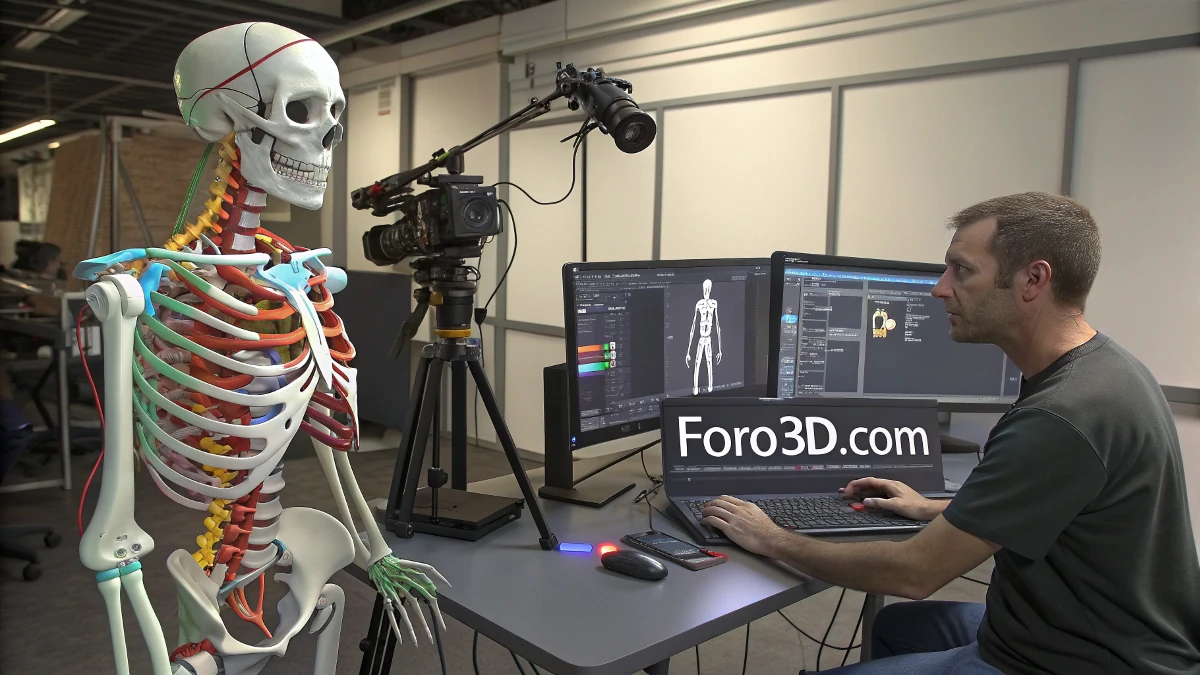
When working with 3D models that include a skeleton for animation, it's common to want to adjust their proportions. However, if the bones are not properly configured, changes can cause unexpected deformations, such as child bones stretching when parent bones are modified. This article explains how to make these adjustments without affecting the model's structure.
Common Problems When Modifying a 3D Skeleton
When trying to modify an already skinned model, certain issues may arise that affect the integrity of the animation. Some of the most common problems include:
- Child bones change length when parent bones are rotated.
- The model deforms when applying new poses.
- Constraints in the rig affect bone behavior.
- The skeleton is composed of dummies instead of standard bones.
Solutions to Avoid Bone Deformation
1. Lock Bone Length
In 3ds Max, standard bones have the option to keep their length fixed. To prevent children from lengthening when modifying the skeleton, activate the Freeze Length option in Bone Tools:
- Go to the Animation tab.
- Select Bone Tools.
- Activate Freeze Length for each modified bone.
2. Adjust Hierarchy Scale
If the bone scale is not uniform, hierarchy errors can occur. To fix this:
- Select the root bone or the affected bone.
- Go to Hierarchy > Adjust Transform.
- Use the Reset Scale option to reset the scale and avoid distortions.
3. Switch Between FK and IK
The problem may be related to the type of kinematics used. In IK (inverse kinematics), bones can automatically stretch to reach a target, while in FK (forward kinematics) they rotate without changing size.
- If the bones are in IK, try switching them to FK and check if the problem persists.
- To switch between IK and FK in 3ds Max, go to Hierarchy > IK and adjust the parameters.
4. Review Constraints and Links
Some settings can affect how bones react to movement:
- If there are constraints like LookAt, Position, or Stretch, disable them temporarily and test.
- Check for unexpected links or constraints in the hierarchy.
How to Convert Dummies to Bones
Some models come with a dummy-based skeleton, which limits certain animation functions. In this case, they can be converted to bones using the following methods:
1. Create New Bones
- Generate a skeleton with Bones in the same structure as the dummies.
- Use the Align Tool so that the bones match the dummies' positions.
- Reassign influences in the Skin Modifier if the model is already skinned.
2. Link Bones to Dummies
If it's not possible to remove the dummies, bones can be linked to them:
- Go to Hierarchy > Link Info and link the bones to the dummies.
- Use Bone Tools > Convert to Bones to make the dummies behave like bones.
"The key to modifying a skeleton without affecting its structure is to keep the hierarchy and scale properly adjusted."
Conclusion
Modifying a 3D skeleton without child bones deforming requires paying attention to the hierarchy configuration, kinematics, and applied constraints. With tools like Freeze Length, Reset Scale, and converting dummies to bones, adjustments can be made without affecting the model's integrity.