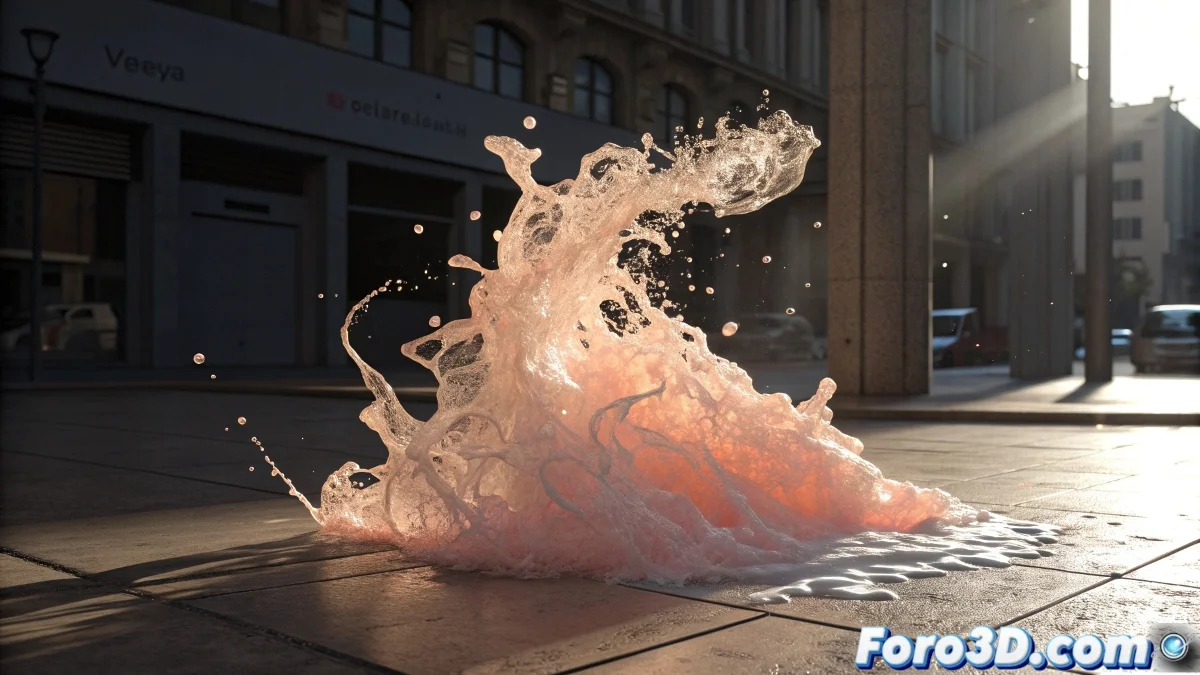
When Fluids Decide to Be Invisible Ghosts
The problem of fluids that don't cast shadows in Maya is one of those classics that can drive any artist crazy. The frustration is understandable when you've activated all the obvious shadow options but your fluid keeps behaving like an ethereal ghost that doesn't interact with the lighting. This behavior is usually due to the fact that fluids in Maya need a specific setup in three different areas: lights, fluid material, and render options.
You've correctly identified the symptom, but the solution requires understanding that fluids don't behave like traditional geometry when it comes to shadows. They need a particular approach that many users overlook.
Light Setup for Fluid Shadows
The first step is to check that the lights have Depth Map Shadows enabled (not Ray Trace Shadows). Select each light in your scene and in its attributes go to Depth Map Shadow Attributes. Enable Use Depth Map Shadows and make sure Resolution is sufficient (1024-2048 for tests, 4096+ for final).
The critical parameter that many forget is Use Mid Dist and Use Auto Focus. Disable Use Auto Focus and manually adjust the Focus to cover the area where your fluid is. Fluids can get lost in automatic depth map calculations.
- Depth Map Shadows enabled (not Ray Trace)
- Resolution: 1024-2048 for tests
- Use Auto Focus disabled
- Focus manually adjusted to the fluid area
A perfect shadow on fluid is like a good reflection: it proves the object is really there
Fluid Material and Shadow Attributes
In the Fluid Shape, go to the Lighting section and enable Self Shadow. This parameter is crucial for the fluid to cast shadows on itself. Also adjust Shadow Opacity to 0.8-1.0 for visible shadows and Real Lights must be enabled.
For the fluid color, go to Color and make sure it's not completely black or completely transparent. Fluids with very low opacity or very dark colors may not cast visible shadows. Use Opacity values between 0.3-0.8 for better results.
- Self Shadow enabled in Lighting
- Shadow Opacity: 0.8-1.0
- Real Lights enabled
- Fluid Opacity: 0.3-0.8
Render Setup for Fluid Shadows
In the Maya Software render options, go to the Maya Software tab and in Shadows make sure Shadow Method is set to Shadow Maps (not Off or Simple). Also enable Use Depth Map Shadows at the render level.
If you're using Mental Ray, the setup is different. In Quality Presets, use at least Production quality and check that Shadow Maps is enabled in the render options. Mental Ray may require additional adjustments in the fluid material.
- Maya Software: Shadow Method = Shadow Maps
- Use Depth Map Shadows enabled at render level
- Mental Ray: Quality Preset = Production or higher
- Shadow Maps enabled in Mental Ray
Solution for Persistent Cases
If shadows still don't appear, create a simple test object (a cube or sphere) near the fluid and check if this object casts shadows. If the simple object also doesn't cast shadows, the problem is in the light or render setup, not specifically in the fluid.
Another technique is to temporarily convert the fluid to polygons using Modify > Convert > Fluid to Polygons. If the polygons cast shadows but the fluid doesn't, then you know the problem is specific to the fluid setup.
- Test object to diagnose the problem
- Temporarily convert fluid to polygons
- Check lighting with simple objects
- Test with basic render setup
Optimization for Realistic Shadows
For softer and more realistic shadows, adjust the Filter Size in the light's depth map properties. Values of 3-5 create softer shadows, while values of 1 create harder and more defined shadows. This is especially important for fluids which usually have soft edges.
Ambient lighting also affects shadow visibility. Reduce the scene's Ambient Light if it's too high, as it can "wash out" the shadows. Use clear directional lighting for well-defined shadows.
- Filter Size: 3-5 for soft shadows
- Reduce ambient lighting
- Use directional lights for defined shadows
- Adjust light intensity for better contrast
Solving this mystery will allow you to create scenes with perfectly integrated fluids where lighting interacts credibly with every drop and volume. Because in Maya, even the most ethereal fluid can learn to project its presence through well-configured shadows 😏
Quick Setup to Get Started
Checklist for fluid shadows:
Lights: Depth Map Shadows enabled
Fluid: Self Shadow and Real Lights enabled
Render: Shadow Maps as shadow method
Material: Opacity 0.5-0.8, Visible Color
Lights Focus manually adjusted