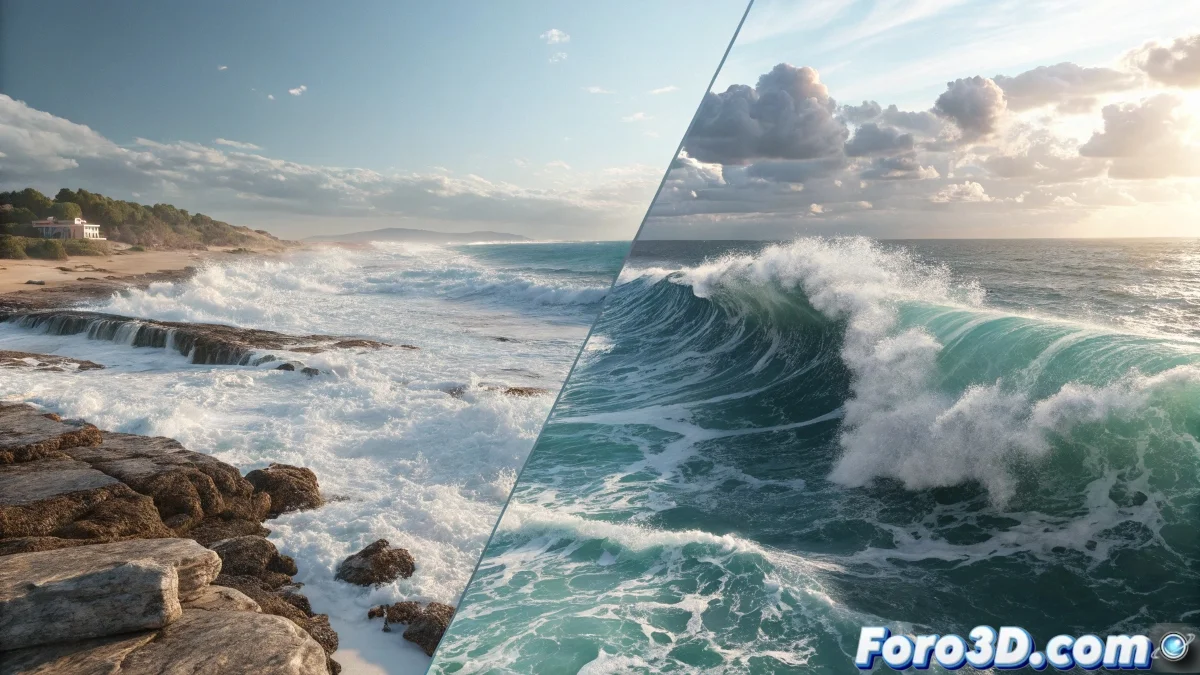
The Challenge of Uniting Two Aquatic Worlds
Integrating an already animated sea in 3ds Max with splash simulations in RealFlow is like making two different choreographers coordinate the same dance. Your sea has its beautiful animation and RealFlow wants to create its own dynamics, but they need to dance to the same rhythm without stepping on each other.
The main problem is that RealWave normally generates its own water surface, but in your case you already have an animated surface that must serve as the base for the interactions. The solution is not to replace your sea, but to convert it into an active actor within the RealFlow simulation.
In simulation integration, sometimes you have to teach new tricks to an old sea
Setting Up Animated Mesh as Collider
The key technique is to convert your animated sea into an animated mesh within RealFlow. This allows the simulation to recognize the sea surface and correctly calculate collisions with the emerging creature.
- Export the animated mesh: from 3ds Max export the sea sequence as OBJ or ABC
- Import into RealFlow: use the animated mesh as a dynamic collision object
- Configure as animated mesh: in properties mark as animated object
- Adjust collision resolution: sufficient detail for precise interactions
Techniques for Realistic Interaction
For the splash to integrate naturally with your existing sea, you need to perfectly synchronize the movement and ensure that the physical properties are consistent between both systems.
The secret is to make RealFlow believe that your animated sea is a real water surface. This is achieved with specific collision settings and forces 😊
- Identical gravity force: same configuration in both systems
- Synchronized animation speed: same FPS and timing
- Coherent material properties: similar density and viscosity
- Strategic particle emitters: located where the creature emerges
Step-by-Step Workflow
Follow this orderly process to avoid the most common integration problems. The key is the correct export and import of the animated mesh.
Start with a short test of a few frames to verify that everything works before simulating the full sequence. This will save you time and frustration.
- In 3ds Max: export sea mesh with full animation
- In RealFlow: import mesh and configure as animated collider
- Create particle emitter at the creature's emergence point
- Simulate and adjust interaction parameters
Solution to Common Problems
When the integration doesn't work as expected, it's usually due to one of these problems. Identifying which one is yours will help you solve it faster.
Incorrect scale is the silent enemy of simulations. A sea that is too large or too small in relation to the particle emitter will create unrealistic interactions.
- Verify scale between imported mesh and RealFlow scene
- Adjust collision resolution for better detection
- Synchronize animation frames exactly
- Test with different types of particle emitters
Optimization for Final Render
Once the simulation works correctly, you need to prepare everything for the final render. The export back to 3ds Max must maintain visual coherence between your original sea and the new splash.
Use formats that preserve quality but are efficient in terms of storage and render time. Patience is your best ally in this process.
- Export splash as particle mesh or VDB
- Use similar materials for water and splash
- Adjust lighting for visual coherence
- Render separate passes for greater control
After mastering this technique, your creature will emerge from the sea with a splash so integrated that even Neptune would approve the result... although you might have to explain to him what RealFlow is 🌊