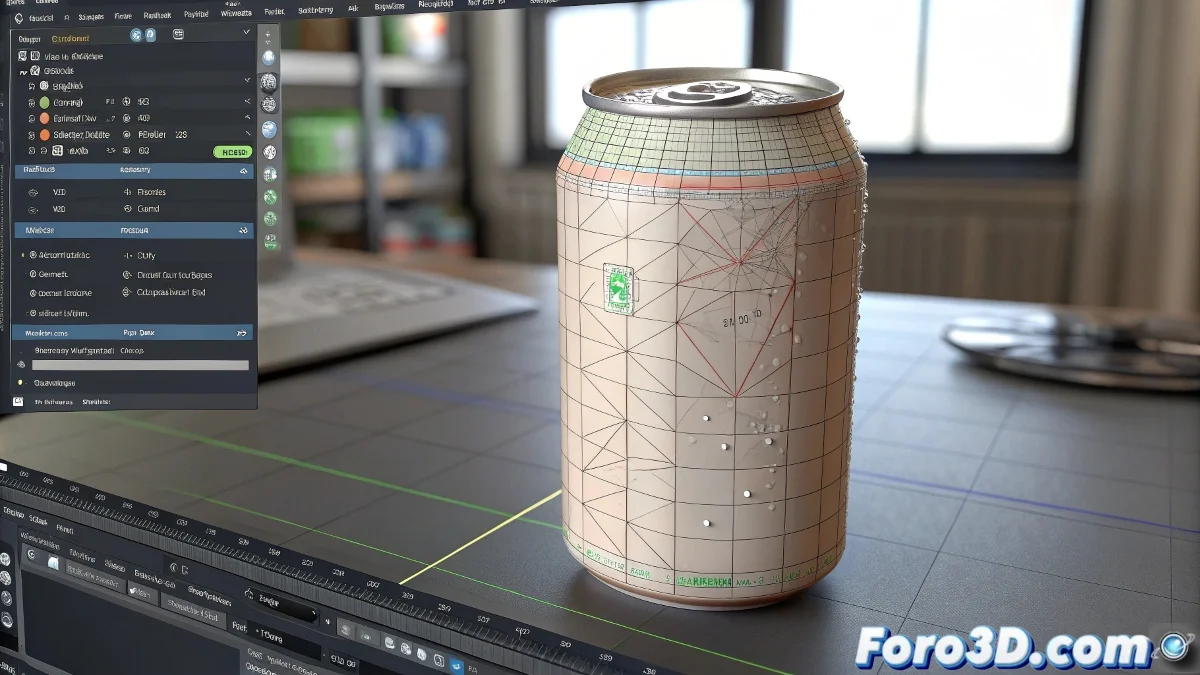
The Art of Animating a Can Without It Looking Drunk
Animating simple objects like cans in 3ds Max should be easy, until your creation starts moving as if it had drunk three coffees in a row. 😅 The secret lies in mastering the Skin modifier and weight painting, because nothing ruins an animation more than a can that deforms like chewing gum.
Taming the Rebel Bones
When bones decide to behave like rebellious teenagers and deform the can in impossible ways, it's time to take control. Three essential tools:
- Paint Weights: The brush that corrects your bones' excesses
- Bend modifier: For natural curves, not circus accidents
- Limit constraints: Because everything in life needs limits
A well-animated can bends gracefully, not as if it's trying to escape the screen.
Giving It a Voice Without Losing Your Mind
To animate your talking can's mouth without ending up with a migraine, there are two wise paths:
- Morph targets: Create predefined expressions and switch between them
- Animated textures: The quick solution for the impatient
If your attempts make the can look like it's chewing a wasp, maybe it's time to take a break. ☕
Eyes That Don't Terrify
Nothing is more disturbing than eyes that move out of sync. The magical solution lies in:
- Orientation constraints: To keep the gaze coordinated
- Expressions: When you need mathematical precision
- Copying and pasting keyframes: The oldest trick in the book
Remember: eyes are the window to the soul, even for a soda can. 👀
Textures That Don't Give Nightmares
Importing textures from Photoshop should be simple, but sometimes it seems like the programs are conspiring. Three foolproof tips:
- Use PNG with transparency for clean details
- Try TGA if the PNG rebels
- Don't forget to adjust the UV maps before cursing your computer
In the end, animating a perfect can is like making coffee: it seems simple until you try it. But with these tips, you'll at least avoid making your creation look like it's from a horror movie. Or if that's what you're going for... mission accomplished! 👻
And remember: if your animated can starts giving life advice, maybe you've worked on this project a bit too much. 🤖