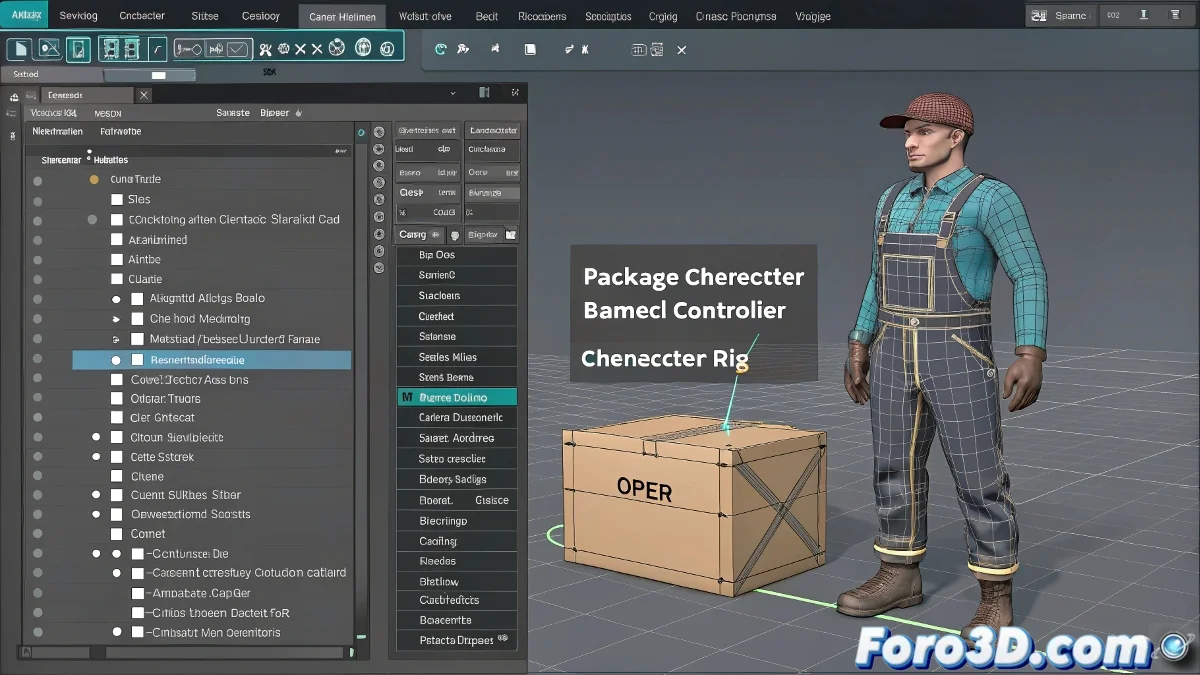
How to Activate Controllers in PackageMan for Maya
When working with the PackageMan character in Maya, activating the controllers might seem a bit tricky if you're not familiar with the interface. However, with a few steps, you can efficiently manage the character's controllers. And no, you don't need to be a rigging expert to do it! 🎮
Select the Main Node
The first step is to select the character's base, which is usually a main controller node or a group containing all other controllers. This node is often identified by the text pm.
Activate Controllers in the Channel Box
Once the main node is selected, go to the Channel Box, where you'll see a list of attributes and parameters. Some of these attributes might be set to off by default to avoid overloading the scene or the rig while they're not needed.
To activate the controllers:
- Click on those parameters and change their value from off to on.
- If the attribute is not directly editable, unlock it by right-clicking on the attribute and choosing Unlock Attribute.
Using Scripts or Custom Menus
Some rigs use scripts or custom menus to activate or deactivate controllers. If nothing happens when you change the value in the Channel Box, check if there is a special menu or shelf with buttons to manage the PackageMan controllers. These buttons usually automate the activation and save you from having to adjust attributes manually.
In summary, the key is to select the base controller, unlock the attributes if necessary, and activate the controls one by one or via scripts, all from Maya's interface.
Remember, activating all controllers at once can make the rig run slow, so it's better to go step by step and not go crazy trying to figure out why the animation is lagging. An organized control is better than chaos on the timeline! 😉
With these steps, you'll be able to activate controllers in PackageMan for Maya efficiently. And remember, if something doesn't work, you can always blame the rebellious controllers! 🎭