The studio Argentum has released its Hair Cinematic Tool for Unreal Engine 5 for free. This tool facilitates access to Unreal Engine 5's internal parameters related to hair lighting and shadows, improving the look of rendered animations.
Tool Features
The Hair Cinematic Tool allows content creators to access hidden parameters for hairstyle rendering, helping to achieve higher quality renders for cinematics, animations, and visual effects (VFX). Its graphical interface allows adjusting Unreal Engine's internal variables, such as console variables (CVars), for hair, voxelization shadows, and deep shadows.
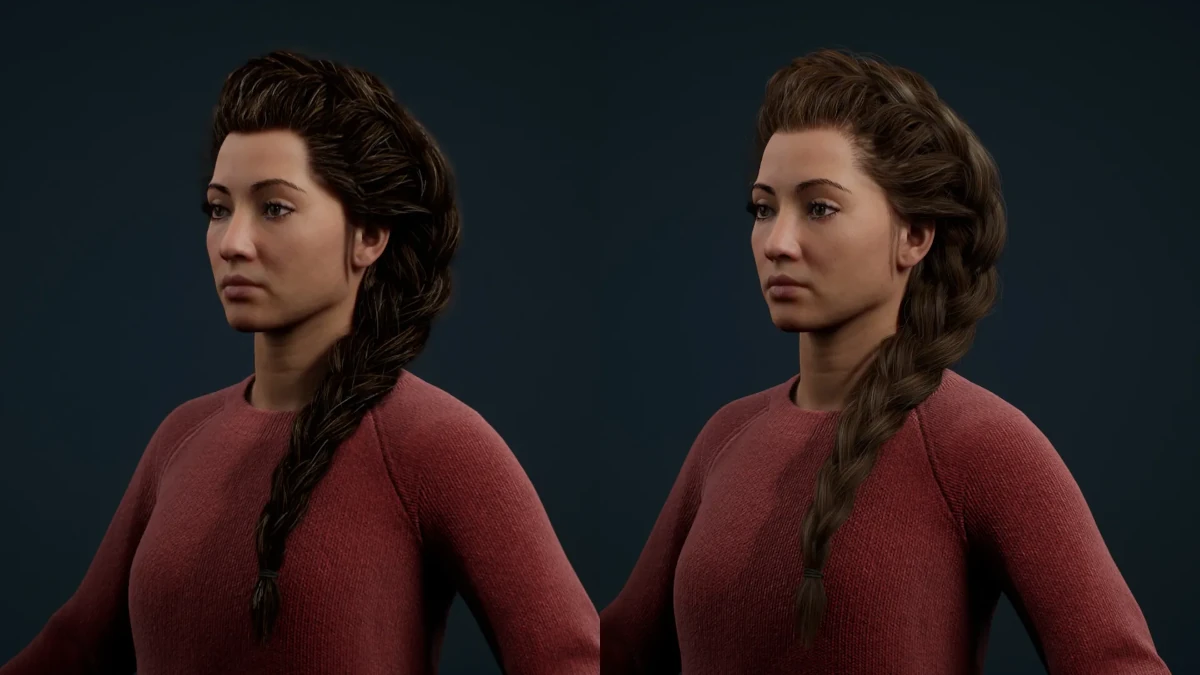
Argentum Studio describes this tool as a resource to grant total control over hairstyle rendering settings, addressing the lack of detailed native options on the platform. Through it, users can adjust hair and fur rendering, improving their lighting and shadows.
System Requirements
The Hair Cinematic Tool is compatible with Unreal Engine 5.1 and later versions. It is available for free under the standard ArtStation Marketplace license, allowing its use in commercial projects.
How Shadows Work in Hair Strands Groom in Unreal Engine

Voxelization Shadow
It is the default shadow type used by a light source. It offers economical performance, but the visual quality is inferior compared to Deep Shadow. This option produces softer shadows.
Deep Shadow
Generates 4-layer shadow maps and has a higher performance cost, being ideal for close-up shots where quality is crucial.
Raytracing Groom Shadow
It is an option that is not recommended due to its strong impact on performance without offering significant improvements in visual quality.
It is important to note that both Voxelization and Deep Shadow do not work with Raytracing Soft Shadow or VirtualShadowMap (Lumen), although they do not cause critical artifacts.
Global Hair Settings
- Enable on Play: Activates all settings in Play(PIE) mode or when rendering with Movie Render Queue. This option is enabled by default.
- Use Cinematic Settings: Activates all settings in the Viewport (InEditor). It is useful when the groom is overloaded and performance (fps) is lost. It can be disabled to work comfortably in the scene without losing previous settings. It is recommended to activate this option when rendering in Movie Render Queue.
- Hair Compose After Translucency: Allows changing the rendering order with translucent objects. The default value is 1.
- Hair DOF: Controls depth of field for hair. This setting does not work well and produces an unaesthetic blur on the hair. It is recommended to disable it, as the depth of field applied to the hair improves the visual result. The default value is On.
- Hair Sort by Depth: Allows changing the order of intersections between thick and fine hairs. The default value is Off.
This tool provides users with great flexibility to adjust the appearance of hair and fur, which significantly improves the quality of rendered scenes in Unreal Engine 5.
You can download it from here.