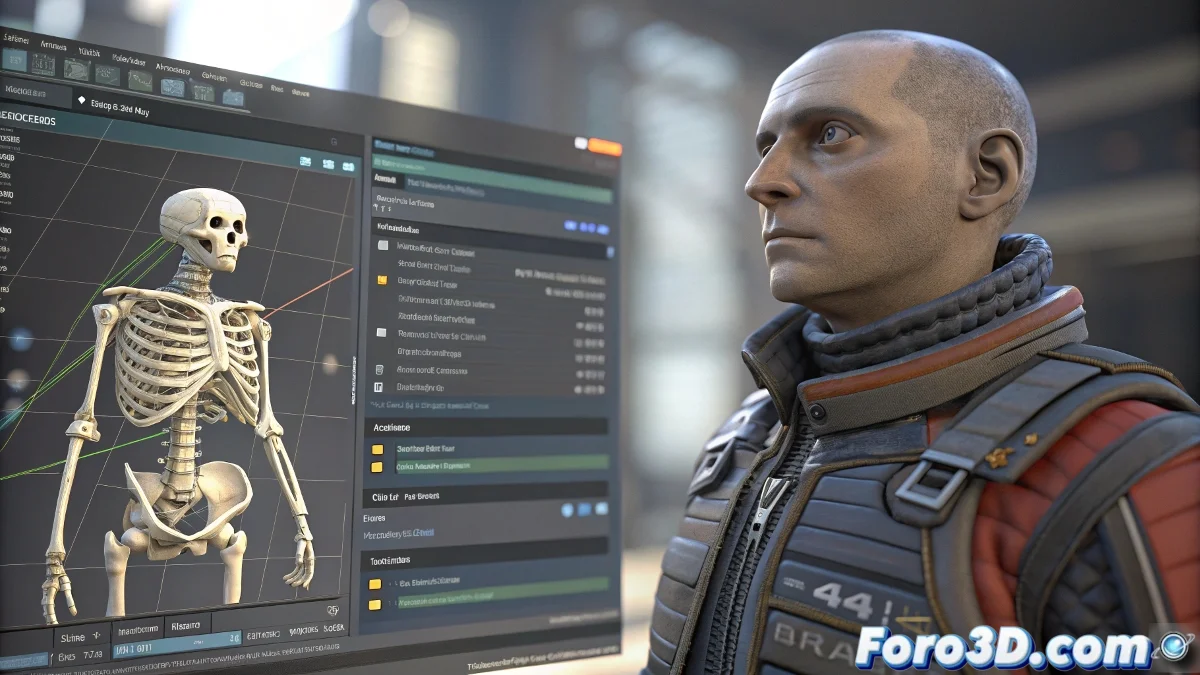
Guide to Using Advanced Skeleton in 3ds Max and Applying Skinning Without Errors
Advanced Skeleton is one of the most powerful and versatile rigging systems for 3ds Max, ideal for creating custom and professional rigs. However, it's not uncommon to encounter some stumbling blocks when starting out, especially in the transition from fit to advanced, where the system asks to select specific bones to adjust the rig and may throw error messages, such as empty values or the need to set joint1 to 0 on X.
Tips to Avoid Errors in the Fit to Advanced Transition
First, it's crucial that the base skeleton (fit skeleton) is correctly aligned and without misadjusted values. The message you receive usually indicates that one of the bones (like joint1) has non-null transformations or is out of its standard position, which causes a conflict. Make sure to correctly select the root bone or the first joint and reset the transformations to zero, especially in the X, Y, and Z positions, before proceeding.
It's also recommended to check that the skeleton doesn't have duplicate bones or incorrect hierarchies, as Advanced Skeleton is very strict about the cleanliness of the base rig. Imagine each bone is like a member of a rowing team; they all need to be synchronized to move forward without issues! 🚣
Applying Skinning Correctly with Advanced Skeleton
Once the advanced rig is ready, applying the Skin Modifier is the next step to bind the mesh to the skeleton. To do this:
- Select the character model: Make sure you have selected the model to which you want to apply the skin.
- Add the Skin modifier: From the modifier panel, add the Skin Modifier.
- Add the bones: In the Skin section, add all the bones that are part of the rig.
Remember to adjust the weight painting so that the deformations are natural, using the weight painting tools within 3ds Max. Test the bone animations to verify that the mesh responds correctly.
On platforms like foro3d.com and YouTube, there are detailed tutorials on Advanced Skeleton in Spanish that explain step by step from creating the base rig, the transition to Advanced, and the skinning.
If your computer freezes or throws errors, remember it's not your fault… probably Advanced Skeleton is just meditating deeply on how to bring your character to life. Give it a little time and don't push it too hard, it needs to breathe too! 🧘