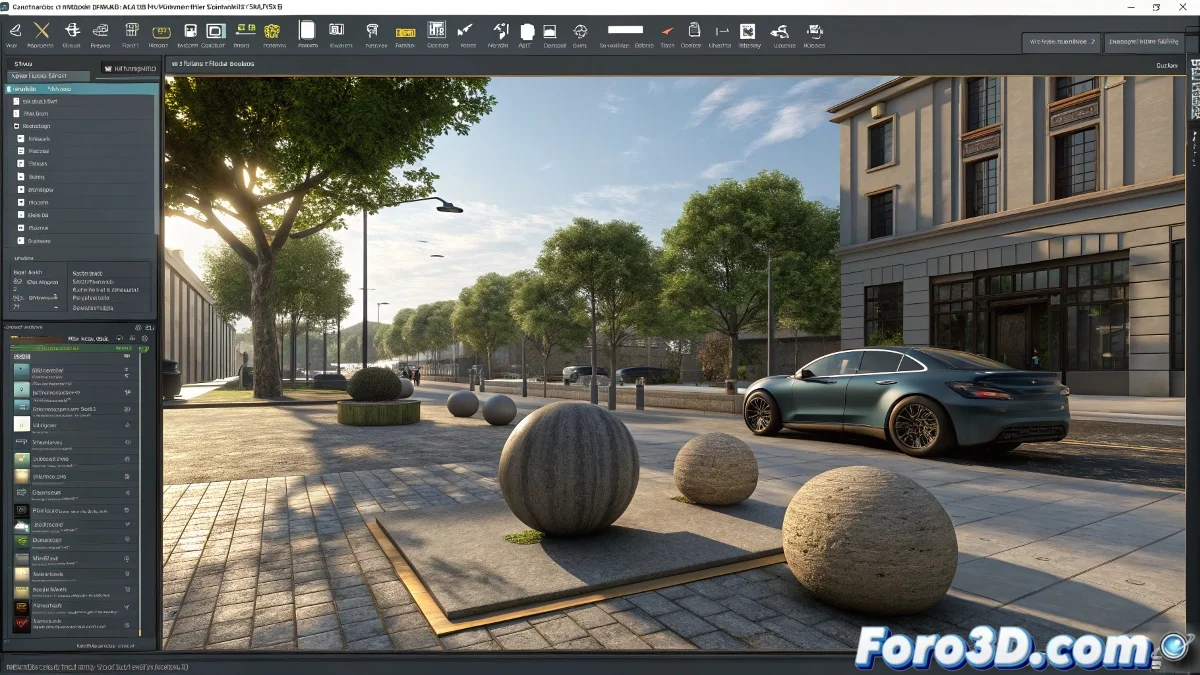
When 3ds Max Decides to Make Abstract Art with Your Renders 🎨
Imagine the scene: you've spent hours perfecting your animation in 3ds Max. The materials look spectacular in the viewport, the lights are perfectly placed, and everything seems ready for the big premiere. But when you render the full animation... surprise! Your objects appear more naked than in an anatomy drawing class. Where the hell did all the materials go? 😱
This classic problem makes even the most patient artist consider switching to watercolor. But before you burn your computer, let's understand why this peculiar digital phenomenon occurs.
The Reasons Behind the Great Material Escape
Generally, there are three main suspects in this crime against your renders:
- The Wrong Renderer: Like asking a baker to fix your wifi
- Make Preview: The sneaky option that only shows a skeleton of your animation
- Quick Display Maps: Those deceptive ghosts that only appear in the viewport
The most common case is trying to render V-Ray or Arnold materials with the Scanline renderer, like trying to play a Blu-ray on a VHS. The result is usually... interesting, but not exactly what you were looking for.
How to Recover Your Fugitive Materials
To avoid your animation looking like a modern art installation, follow these steps:
- Verify that the render engine matches your materials (F10 is your best friend)
- Avoid Make Preview like you would avoid your ex at a family gathering
- Use Render Setup for the final result, as God intended
- Check that the materials are actually assigned and not just for show in the viewport
When everything fails, the classic "turn off and on" remains the most effective therapy for 3ds Max. Sometimes the software just needs a moment to remember who's really in charge.
And if after all that it still doesn't work, you can always say it's an artistic statement about the transience of digital existence. After all, what is art if not mistakes we decide to call "personal style"? 🤷♂️
P.S.: If your materials insist on disappearing, at least make sure they're not charging for appearances like Hollywood stars. ✨