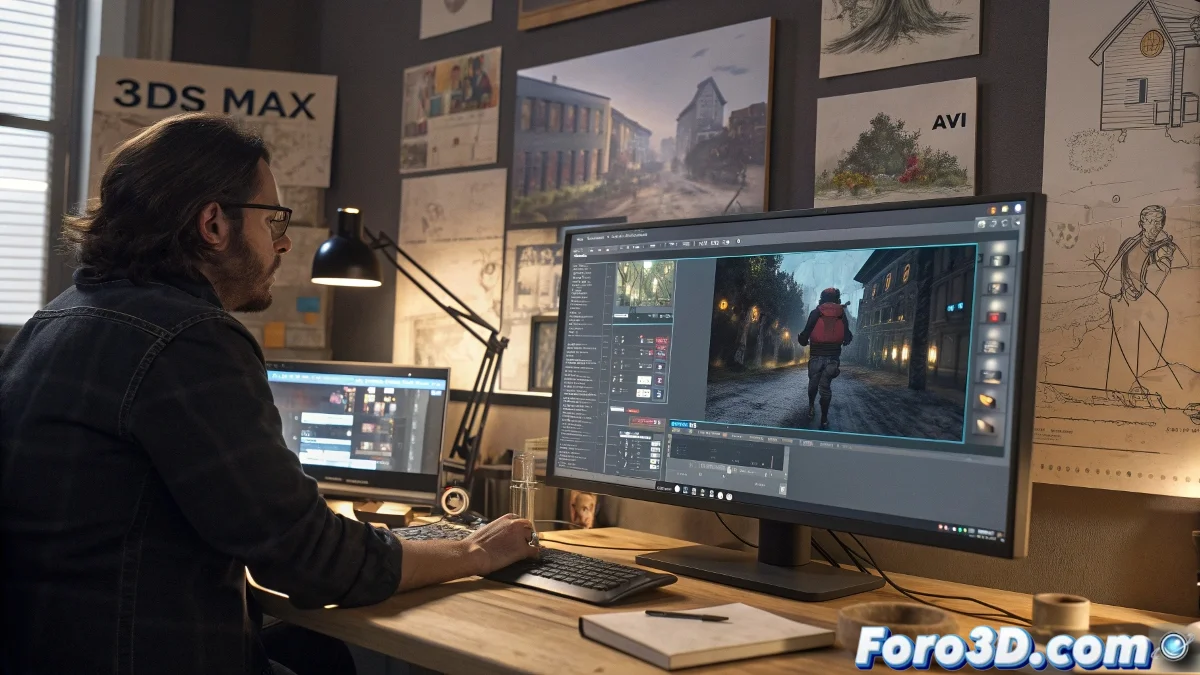
The Art of Getting Your Animations Out of 3ds Max Without Dying in the Attempt
Exporting animations from 3ds Max is like trying to get a cat out of the bathroom: it seems simple until you encounter unexpected scratches. 🐱 The program's preview is fine for a quick glance, but when you need a presentable video, it's time to learn the sacred ritual of rendering.
The Path to the Perfect Video
To turn your frames into a video that won't embarrass your grandma, follow these steps:
- Render Setup: Where you set your frame range like a movie director
- Output Size: Choose resolution as if it were your pant size (not too big, not too small)
- Render Output: The moment to tell Max where to save your masterpiece
- AVI Format: The classic that never fails... well, almost never
Universal truth: The last frame always takes longer to render right when you're in a hurry
Professional Workflow for Premium Results
If you want to impress even the Pixar boss:
- Export as PNG/TIFF sequence (yes, lots of files, but worth it)
- Import to Premiere/DaVinci/Shotcut as if you were a professional editor
- Export as MP4 with H.264 codec (the holy grail of videos)
- Upload to YouTube/Vimeo before your PC regrets it
This method is like the gala suit of exporting: it requires more steps, but the results shine. ✨
Signs That Your Export Needs Help
Red alert when:
- The video weighs more than your last 3D project
- The colors look like they're from the 80s
- The audio (which doesn't exist) gets out of sync
Final irony: The funniest thing is that after mastering this process, you'll spend more time explaining it to others than using it yourself. That's the circle of life in 3D. 🎬