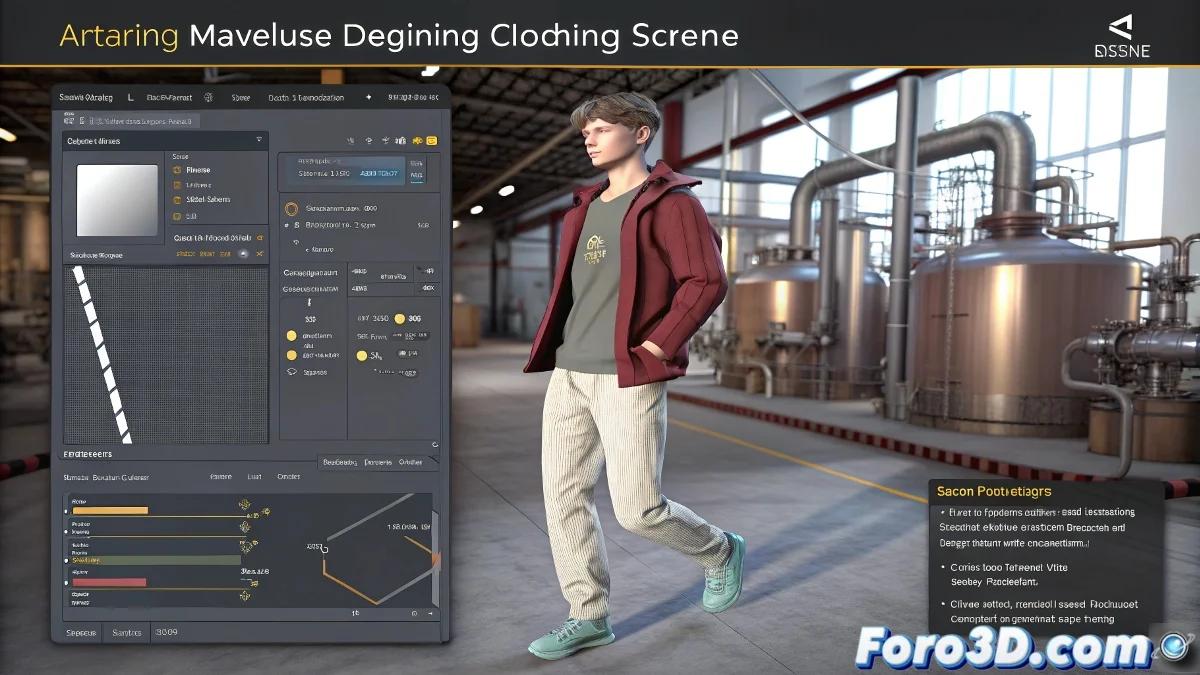
The delicate art of dressing digital avatars 🧵👗
Transferring animated clothing from Marvelous Designer to 3ds Max is like moving a wedding dress - it requires patience and technique so it doesn't lose its shape. The Alembic (.abc) format becomes your best ally, preserving every fold and movement of the simulated fabric.
The export process step by step
- Prepare your simulation: Make sure the clothing moves correctly over the animated avatar in Marvelous Designer
- Export the clothing: Use Alembic (.abc) format to maintain fabric deformations
- Export the avatar: Preferably in FBX to preserve the rig and animation
- Import into 3ds Max: First the avatar, then the clothing as a separate file
- Align and adjust: Use tools like Skin Wrap to perfect the fit
"A good digital clothing export is like a good custom suit: if you do it right, no one will notice the work behind it"
Common errors and their solutions
| Problem | Solution |
|---|---|
| The clothing doesn't match the avatar | Check scale units and initial position in both programs |
| Loss of detail in folds | Increase mesh resolution when exporting |
| Desynchronized animation | Verify that both files use the same frame rate |
Professional tricks
- Use Cache Layers in Marvelous to edit the simulation later
- Test with Material IDs to preserve different fabrics
- Consider exporting animated UVs if working with printed fabrics
Remember: although Marvelous Designer does the simulation magic, 3ds Max is where the real alchemy happens. A little manual adjustment when importing can make the difference between an outfit that looks painted and one that really dresses the character. And if all else fails, you can always say they are "design wrinkles" 😉.