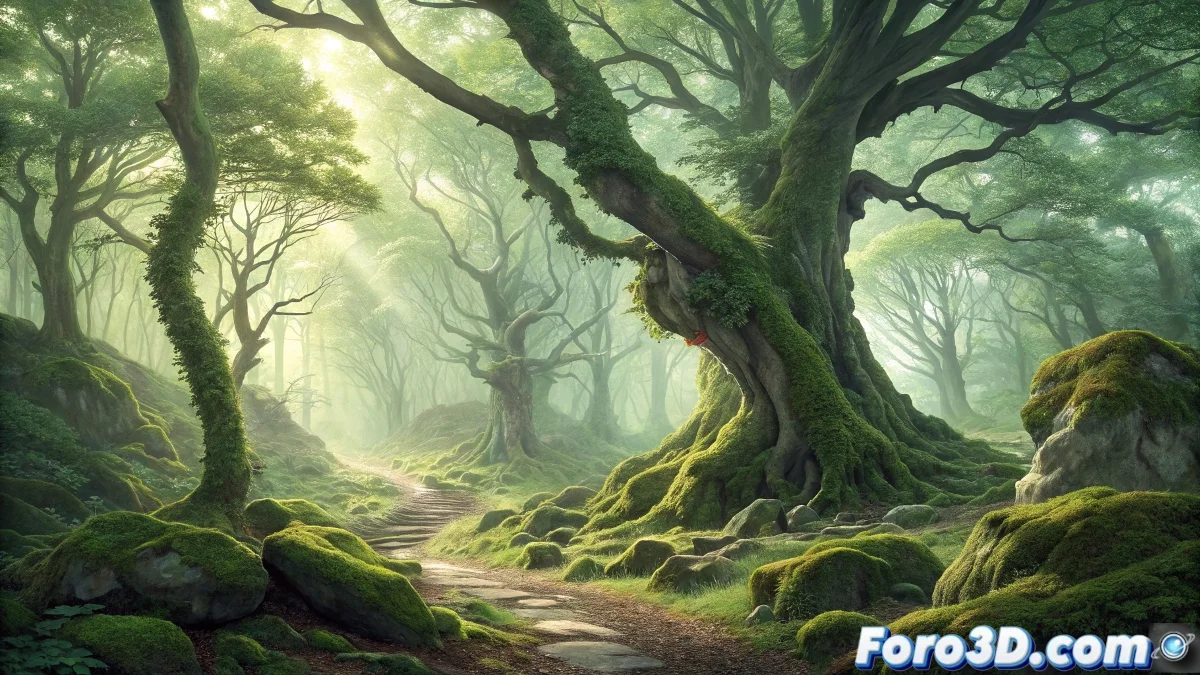
Enchanted Forest of Urbasa: Where Nature Comes to Life
In the heart of the Urbasa mountain range, in Navarre, lies a beech forest that seems taken from a fairy tale. This forest, known as the enchanted forest, is a place where mist weaves between the trunks of centuries-old beech trees and moss-covered rocks take on whimsical shapes. Many visitors swear they have seen figures of elves, dragons, and other mythological creatures in them. The filtered light that penetrates the dense vegetation creates a magical atmosphere that has inspired legends for generations. 🌳
The Natural Magic of Urbasa
What makes this forest special is not only its scenic beauty, but its ability to stimulate the imagination. The rock formations, sculpted by erosion and covered by thick layers of moss, transform into fantastic beings depending on perspective and light. This phenomenon, combined with the mystery generated by the frequent fog in the area, makes every walk through Urbasa an almost supernatural experience. The forest seems to breathe and watch you from every corner.
Creating the Magic of Urbasa in GIMP
Recreating the enchanted atmosphere of the Urbasa forest in GIMP requires combining photo manipulation techniques with a touch of digital painting. The goal is to enhance the magical character of the scene without losing the natural essence of the landscape.
Preparing the Base Image
Start with a photograph of a beech forest, preferably with visible rocks and some moss texture. In GIMP, duplicate the base layer and apply a levels adjustment to improve contrast. Use the curves tool to slightly cool the tones, giving a more mysterious hue to the whole. Always work on duplicated layers to preserve the original image.
Key elements to look for in the base photo:- beech tree trunks with interesting texture
- rocks with suggestive shapes
- ground with leaf litter and moss
- sky partially visible through the foliage
Enhancing the Magical Atmosphere
Create a new layer in multiply mode and with a very soft, pale blue brush, slightly darken the edges of the image to create a vignette effect. Then, add another layer in overlay mode and paint golden light glimmers between the trees using a soft texture brush. Play with the opacity until you achieve a subtle effect that simulates sun rays filtering through the leaves.
The magic in a fantastic image is in the subtle details, not in exaggerated effects.
Creating Creatures of Moss and Stone
To transform rocks into fantastic creatures, select specific areas using the free selection tool. Duplicate these selections into new layers and experiment with the Gaussian blur and edge enhance filters to soften or define shapes. Use moss texture brushes to paint over these rocks, creating the illusion that the moss forms eyes, mouths, or wings. Reduce the brush opacity to naturally integrate these elements.
GIMP tools for transforming rocks:- free selection tool to isolate shapes
- texture brushes to add moss
- light and shadow filter for volume
- color adjustment layers for integration
Atmosphere and Final Effects
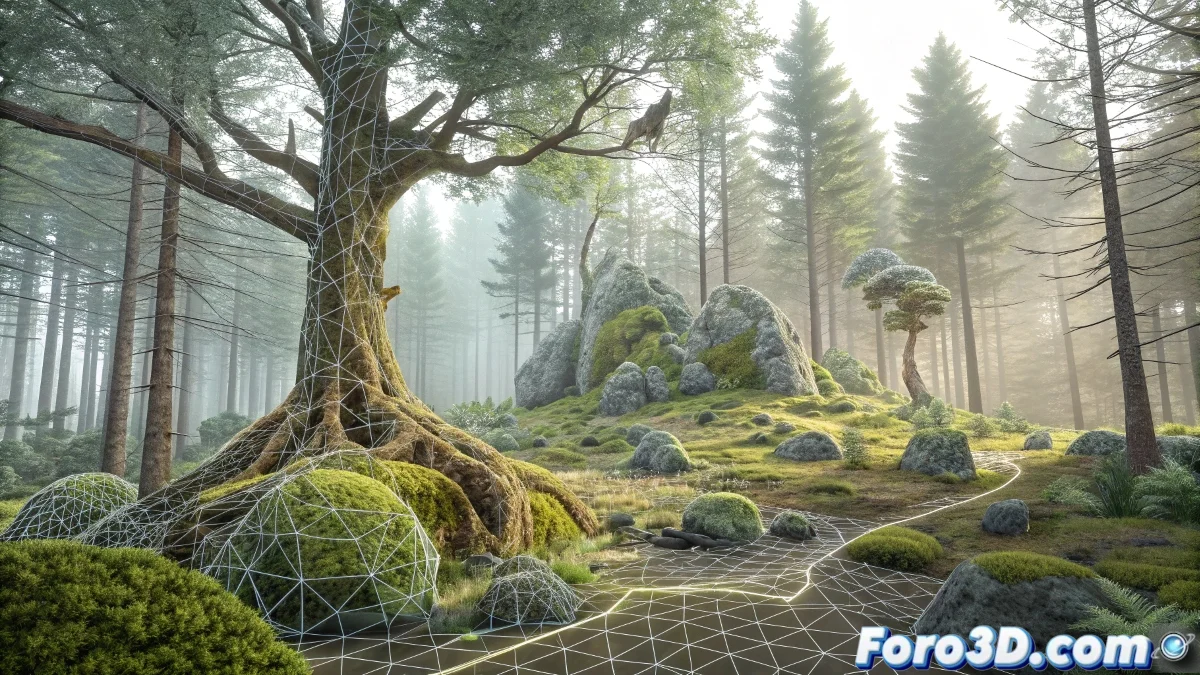
Add a new layer and fill it with a soft, semi-transparent white gradient. Use the motion blur filter