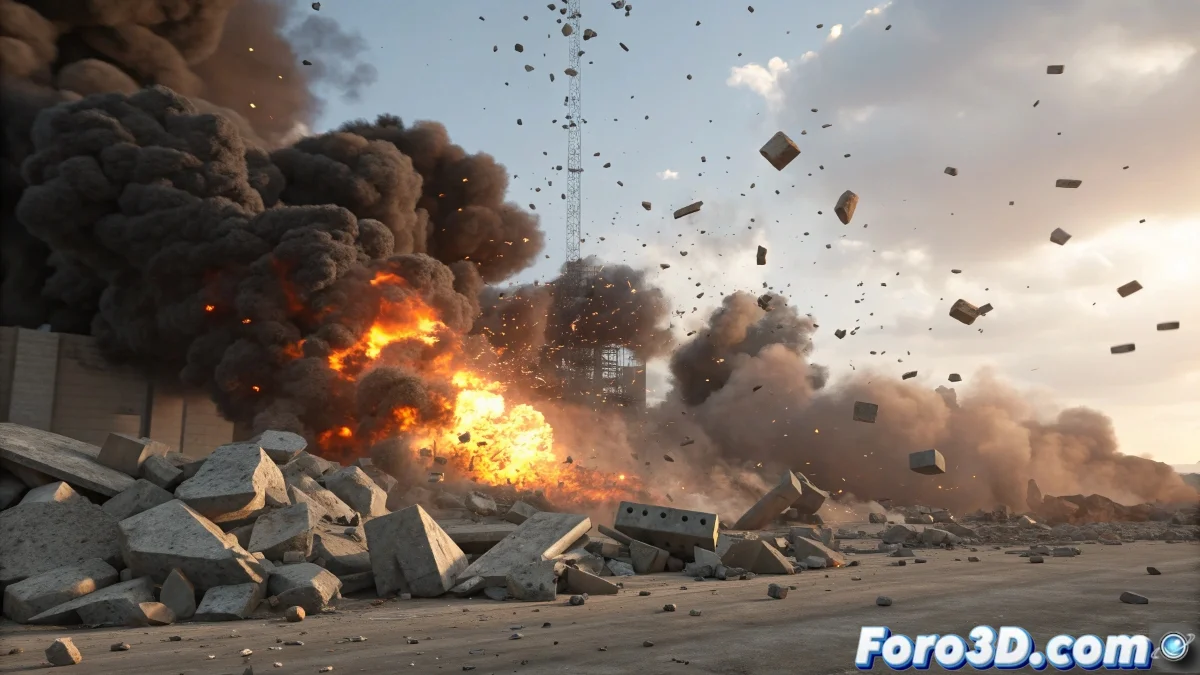
When Effects Decide to Be Invisible Ghosts
The problem of effects not appearing in the render in RayFire is more common than you think, especially when you're just starting with this powerful plugin. The frustration is understandable: you see the smoke, fire, and particles tabs, you configure them, but in the final render only the ghost of what should be a spectacular destruction appears. This issue usually has several layers that need to be addressed systematically.
RayFire handles effects differently from other plugins, and there are several invisible switches that must be activated for everything to work correctly. You're not doing anything wrong per se, but you're probably missing some critical steps in the setup.
Activating Effects in Properties
The first and most common problem is in the global activation of effects. In the main RayFire panel, go to the Physics tab and make sure Simulate Effects is enabled. This is the master switch that many users overlook - without it, RayFire will calculate the physics but completely ignore all visual effects.
Then, for each object you want to generate effects, check that the Generate Debris or Generate Dust option is enabled in its specific properties, depending on the effect you're looking for. Objects without this option enabled will not generate particles or effects, no matter how you configure the effects tabs.
- Simulate Effects enabled in Physics tab
- Generate Debris/Dust on emitter objects
- Effects intensity greater than zero
- Effect radius covering the desired area
Effects in RayFire are like shy artists: they need multiple invitations before appearing on stage
Particle Systems Configuration
For debris and dust particles to be visible, you need to correctly configure the Particle Flow that RayFire generates automatically. After the simulation, RayFire creates particle systems in your scene, but they may be hidden or disabled. Look in the object list for systems named RF_Debris or RF_Dust and check that they are visible and renderable.
In the properties of these particle systems, check that the Render Operator is configured correctly. Often the systems are created with None render type by default. Change it to Geometry or Facing to make them visible in the render.
- Search for RF_Debris and RF_Dust systems
- Check visibility and renderability
- Render Operator set to Geometry
- Materials applied to particles
Smoke and Volumetric Effects Configuration
Smoke in RayFire requires FumeFX installed and configured. If you don't have FumeFX, the smoke effects simply won't appear. Check that FumeFX is installed and that the integration is enabled in RayFire preferences.
For fire and smoke effects, RayFire automatically generates FumeFX emitter objects, but they may need manual adjustments. After the simulation, look in your scene for FumeFX emitters and check that they are configured with the appropriate fuel, smoke, and temperature parameters.
- FumeFX installed and enabled
- FumeFX emitters visible in scene
- Fuel and smoke parameters adjusted
- FumeFX Container with adequate resolution
Render Troubleshooting
If the effects appear in the viewport but not in the render, the problem may be in the render settings. Check that the particle systems have Renderable enabled in their properties, and that atmospheric effects are enabled in the render options.
For volumetric effects like smoke, make sure the render engine you're using (Scanline, Mental Ray, V-Ray, etc.) is configured to render atmospheric effects. Some render engines require manual activation of these features.
- Renderable enabled on particle systems
- Atmospheric effects enabled in render
- Render engine compatible with effects
- Appropriate materials and lights setup
Verified Step-by-Step Workflow
To ensure success, follow this strict order: First, configure all objects and effects in RayFire. Run the physics simulation. Then, look for the generated particle systems and check their configuration. Adjust materials and render parameters. Finally, render a small region to verify everything works before the full render.
If after all this the effects still don't appear, try the FumeFX demo version (if you don't have it) or consider using 3ds Max native particle systems to simulate the effects that RayFire is not generating correctly.
- Specific setup order
- Post-simulation verification of generated objects
- Test render with small region
- Alternatives with native particles if necessary
Solving this mystery will turn you into the master of destructive effects, capable of creating everything from dust and debris to spectacular smoke and fire. Because in RayFire, even the most invisible effect can learn to show itself with the right setup 😏