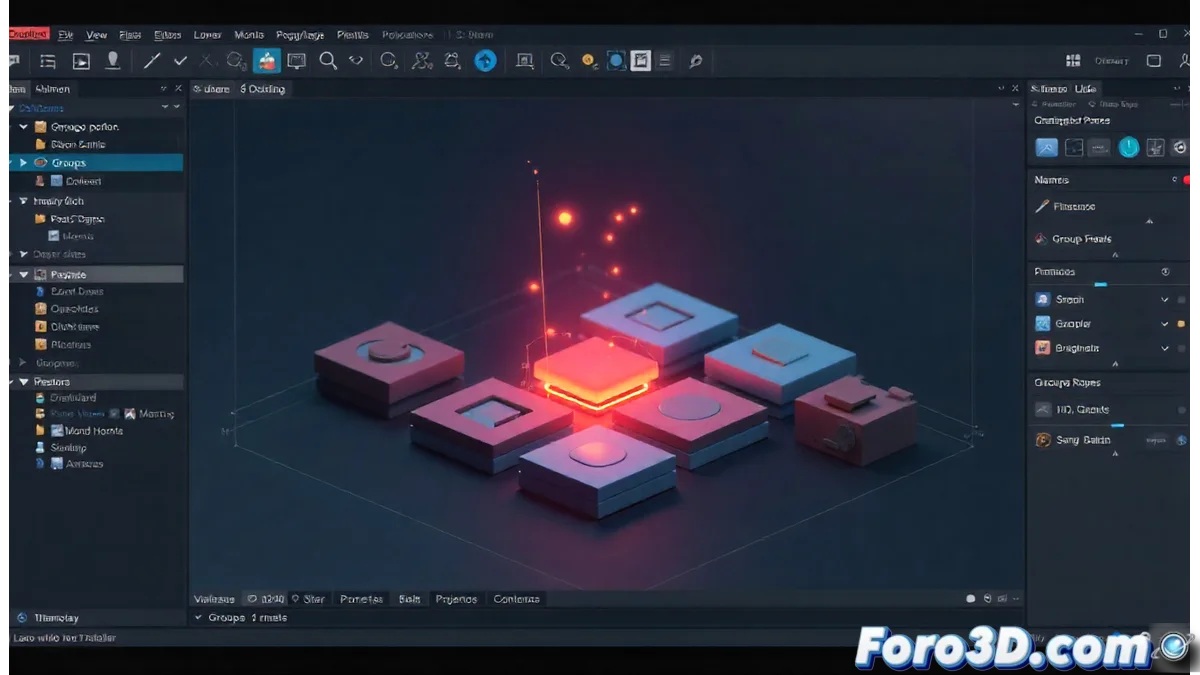
Efficient Layer Organization in Synfig Studio Using Groups
Managing complex projects in Synfig Studio is considerably simplified through the strategic use of layer groups. This functionality transforms the way of working with multiple visual elements, offering superior control over the project structure 🎨.
Fundamentals of Layer Grouping
Creating groups in Synfig is an intuitive process that begins by selecting the desired layers in the corresponding panel. Using the keyboard shortcut Ctrl+G or navigating to the Layer / New Group menu generates a unified container that acts as a manipulable entity. This grouping allows coordinated transformations, synchronized movements, and joint property adjustments, significantly optimizing the workflow.
Main advantages of grouping:- Reduction of visual clutter in the layer list through logical structuring
- Application of global modifications such as opacity adjustments or simultaneous animation effects
- Possibility of creating complex hierarchies through nested groups within other groups
Strategic layer grouping is comparable to organizing a closet: each element finds its specific place, facilitating access and modification when necessary.
Advanced Organization Techniques
Encapsulated groups offer exceptional operational flexibility. Once a group is created, you can expand it to access individual components or collapse it to view only the main container. This feature is particularly valuable when working with complex hierarchical structures, allowing specific edits without losing the global view of the project.
Essential procedures:- Multiple selection of consecutive layers followed by Ctrl+G for quick grouping
- Expansion/collapse of groups by clicking the adjacent triangular icon
- Ungrouping via contextual menu that restores individual layers while preserving properties
Practical Considerations
Handling layer groups requires some planning, similar to keeping a room full of toys organized: although the organization is meticulous, there is always the possibility that some element may behave unexpectedly during animation. The key lies in establishing a logical structure from the start of the project and creating groupings that reflect the natural relationships between visual elements ✨.