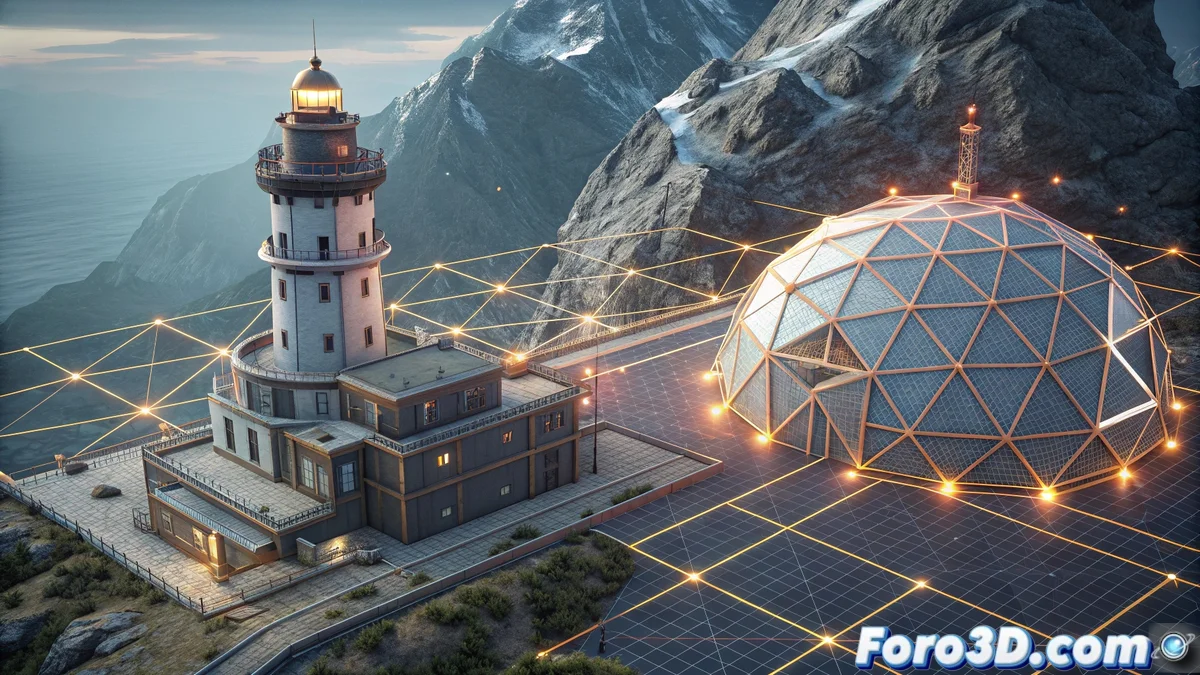
Finding Edge Intersections in Blender for CAD Modeling
Blender has established itself as a versatile tool for CAD modeling, offering multiple approaches to identify edge intersections with high precision. This is essential in technical and mechanical projects where accuracy in measurements and alignments is critical. 🛠️
Methods with Boolean Operations
A fundamental technique involves using boolean tools to generate exact intersection points. By selecting the desired objects and applying the Intersection operation in the edit menu, new edges are created in the overlap areas. Ensure the geometry is sufficient to avoid errors and review the resulting vertices in edit mode. 📐
Key steps for booleans:- Select the objects to intersect and go to the edit menu
- Apply the boolean operation of type Intersection to generate new edges
- Verify the created geometry and adjust the resolution for greater precision
Precision in intersections is fundamental for designs that require exact measurements and perfect alignments.
Snapping and Add-ons for Automation
Another efficient alternative is to enable snapping to intersections in the toolbar, allowing vertices or edges to be manually aligned at intersection points. Set snapping to Increment or Face and enable self-projection to optimize results. Additionally, add-ons like CAD | Transform or Mesh | Intersect automate detection, automatically creating vertices and saving time on complex projects. ⚙️
Advantages of using add-ons:- Automation in intersection detection for agile workflows
- Automatic creation of vertices at intersection points, reducing manual errors
- Ideal for extensive technical models with multiple overlapping geometries
Practical Tips and Final Reflection
Initially, finding intersections in Blender may seem challenging, but with practice it becomes intuitive. Test these techniques on simple models to familiarize yourself and avoid rebellious edges by adjusting snapping settings or using modifiers like Bevel. The combination of boolean methods and specialized add-ons ensures professional results in your CAD designs. 🎯