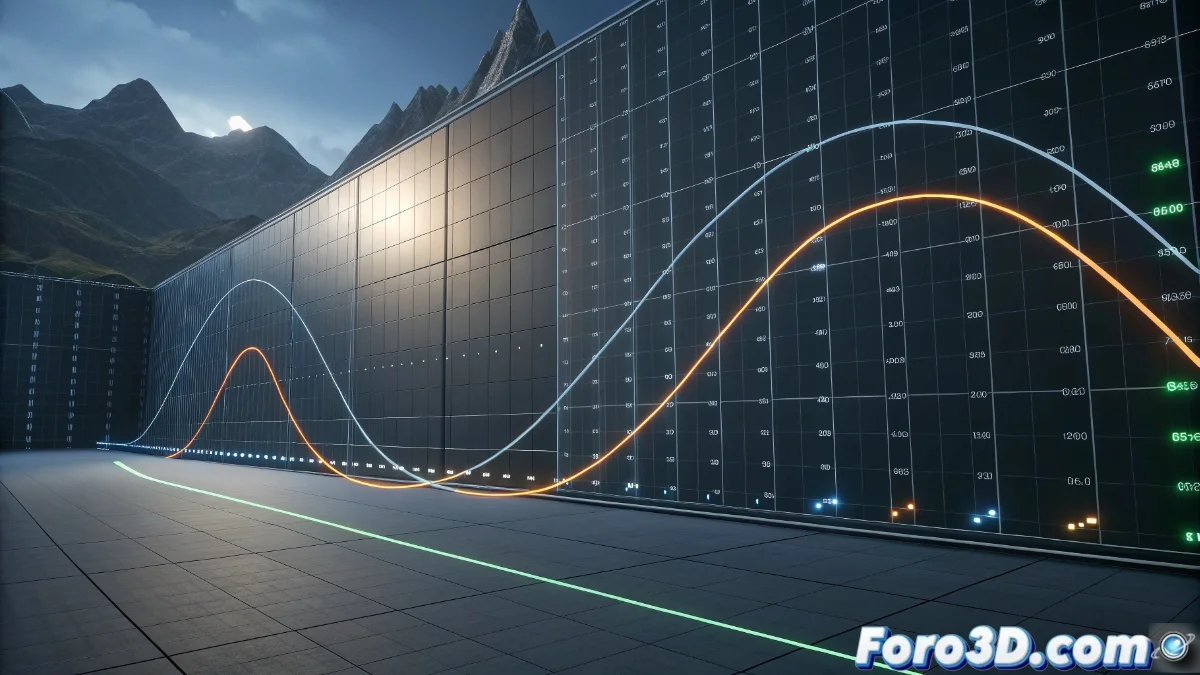
Curve Editor in Unreal Engine 5: Complete Guide for Non-Linear Animations
The Curve Editor in Unreal Engine 5 is an essential tool for designing non-linear animations through the use of interpolation curves. Developers can modify these curves to manage how object properties change over time, providing precise control over movements and visual transitions. This capability is crucial for cinematic sequences and dynamic effects, allowing for detailed adjustments without extra code. 🎬
Setup and Handling of the Curve Editor
To use the Curve Editor, open the animation window from the main panel and select the appropriate tab. Users have the option to generate new curves or edit existing ones by moving control points and calibrating tangents to optimize transitions. It is possible to animate attributes such as location, orientation, scale, and material variables, associating each one with a separate curve that dictates its temporal evolution. This facilitates the creation of complex behaviors in an intuitive way.
Key Aspects to Master the Curve Editor:- Quick access via the animation panel for seamless integration into the workflow
- Manipulation of points and tangents to smooth out or intensify changes in properties
- Linking multiple parameters to independent curves, such as opacity or light intensity
Mastering the Curve Editor transforms the way you approach animations, offering limitless creative freedom.
Applications in Development Projects
In video games and audiovisual productions, the Curve Editor is used to achieve natural movements in characters, lighting variations, and particle systems. For example, you can animate the brightness of a light to emulate a sunrise or manage the transparency of a material for progressive fades. Real-time preview speeds up iterations, simplifying error detection and animation polishing.
Common Use Cases in Real Environments:- Creation of organic animations for characters and creatures in games
- Control of particle effects and ambient lighting for dynamic scenes
- Adjustment of material transitions and post-processing effects for greater realism
Reflections on the Development Experience
Often, developers spend more time perfecting curves than testing the final game, which becomes a unique development experience. Especially when a stubborn curve refuses to behave, no matter how many adjustments are applied. This iterative process underscores the importance of mastering the Curve Editor to achieve polished and professional results. 💡