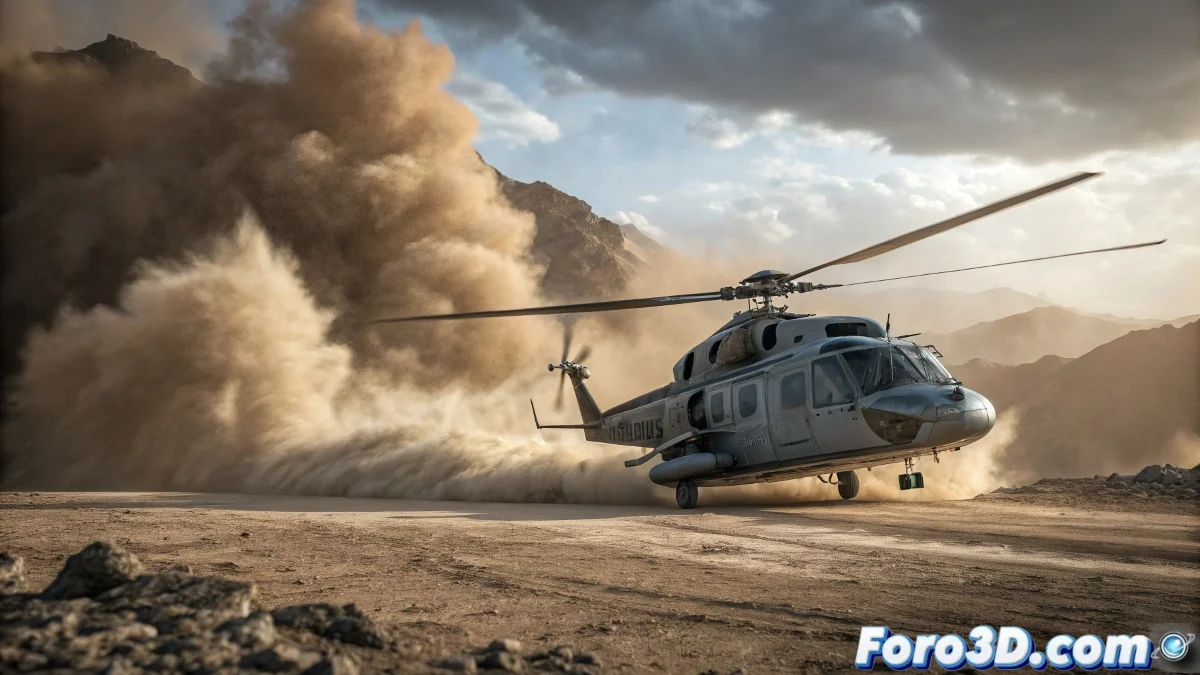
When the Dust Decides Not to Cooperate
Creating a realistic dust effect for a helicopter landing in 3ds Max is one of those challenges that separates basic effects from cinematic sequences. The frustration is understandable when you try to simulate that characteristic dust ring that expands from the blades, but get particles that behave more like confetti at a party than earth lifted by the powerful downwash of a rotor. This effect requires a precise combination of dynamics, particles, and forces working in harmony.
You've identified one of the most iconic and complex effects in the VFX industry. The key is understanding that it's not just about particles falling, but simulating the interaction between the forced downward air and the ground surface.
Base Particle System Setup
Start with a Particle Flow system configured as Event-Driven. Create a main event with a Birth operator that emits particles from a Position Object located just below the helicopter blades. The emission rate should be high (500-1000 particles/second) but not constant - use a Birth Script to emit only when the helicopter is close to the ground.
For the initial behavior, use a Speed operator with Random Horizontal direction and moderate speed (20-50 units). Combine it with a Spin operator to give turbulent motion to the particles. Gravity should be low (0.2-0.5) since dust is lightweight.
- Event-driven Particle Flow for precise control
- Birth with high rate but script-controlled
- Speed with random horizontal direction
- Low gravity for lightweight particles
A perfect dust effect is like a good supporting actor: it supports the main action without stealing the spotlight
Deflectors and Collision System
The heart of the effect is in the deflectors. Create a UDeflector on the ground and another on the helicopter fuselage. The ground deflector should have Bounce 0.1-0.3 for particles that slide, while the helicopter one needs Bounce 0.8-1.2 for particles that are violently expelled.
For the characteristic dust ring, use an SDeflector in a donut shape around the helicopter. Configure it with Bounce 0.5-0.7 and Chaos 20-30% to create that circular expansion pattern that defines the downwash effect.
- UDeflector on ground with low Bounce
- UDeflector on helicopter with high Bounce
- Circular SDeflector for dust ring
- Chaos for natural variation in movement
Forces and Fields for Realism
Add a Wind space warp in an inverted cone shape pointing downward from the blades. Configure it with Strength 2-5 and Turbulence 3-7 to simulate the descending air vortex. Animate the wind strength to increase as the helicopter descends and decrease when it stabilizes.
For the dissipation and rise effect, use a Drag space warp with strength 0.5-1.0 affecting older particles. This simulates how dust loses momentum and starts to float. Combine it with a gentle Vortex for the characteristic spiral motion.
- Wind space warp with conical shape
- Turbulence for organic variation
- Drag for progressive dissipation
- Vortex for spiral motion
Materials and Rendering for Believable Dust
For the particle material, use a Particle Age map connected to opacity. Configure it so particles are almost transparent at birth, reach maximum opacity mid-life, and fade smoothly at death. The color should vary from light to dark based on age.
In the Shape operator, use Facing particles or SixPoint for better performance with materials. For rendering, enable Motion Blur with high duration (1.0-1.5) to smooth the motion and create that sense of speed and chaos.
- Material with Particle Age map on opacity
- Color varying with particle age
- Facing Shape for camera-oriented particles
- High Motion Blur to smooth motion
Optimization and Artistic Control
To prevent the effect from becoming too dense or heavy, use the Delete operator to remove particles that are too far from the camera or have lived too long. Also consider using Particle Flow Box#2 if you have access to it, as it offers better tools for dust and debris effects.
For final control, create expressions or scripts that link the effect intensity to the helicopter's height above the ground. The dust should be minimal when high up, intensify during descent, and stabilize when close to the ground but not fully landed.
- Delete operator for particle management
- Expressions linked to helicopter height
- Level of detail based on camera distance
- Simulation cache to avoid recalculations
Mastering this technique will allow you to create landing sequences that truly convey power and realism. Because in 3ds Max, even the most rebellious dust can learn to dance to the rhythm of your deflectors and space warps 😏
Quick Setup to Get Started
Base values for dust effect:
Particle Flow: 800 particles/second
Deflectors: Ground Bounce 0.2, Helicopter Bounce 1.0
Wind: Strength 3.5, Turbulence 5.0
Material: Particle Age with fade in/out
Motion Blur: Duration 1.2