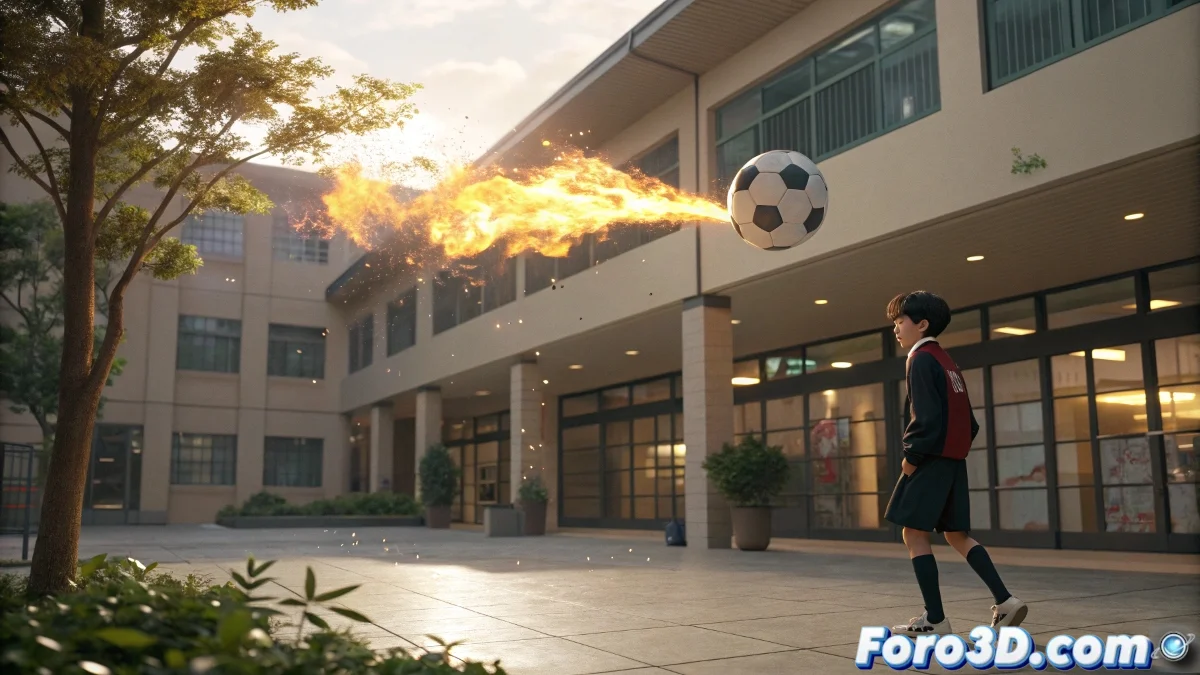
Creating a Ball with a Fire Trail in Blender: Step-by-Step Guide
Do you want your 3D ball to leave a fire trail worthy of an epic video game? 🔥🎮 With this guide, you'll transform a simple sphere into a blazing fireball using Blender. Get ready to set your renders on fire (digitally, of course).
Step 1: Initial Setup
- Delete the default cube (X)
- Create a UV Sphere (Shift+A)
- Scale to 0.5 (S+0.5)
- Rename it to "Fire_Ball"
Step 2: Basic Animation
- Frame 1: I+Location (starting position)
- Frame 50: Move on the X axis, I+Location+Rotation
- Adjust curves in the Graph Editor for natural movement
Step 3: Advanced Particle System
Option 1: Realistic Smoke/Fire
- Select ball → Quick Effects → Quick Smoke
- In Smoke Domain: Resolution 128-256
- Smoke Type: Flow + Fire
Option 2: Magical Effect
- Create a standard particle system
- Make them emit from vertices
- Use Emission+Glow shaders
Step 4: Burning Materials
Shader Setup (Eevee/Cycles): 1. Principled Volume → Orange/red color 2. Density ≈ 0.5 3. Emission Strength ≥ 50 4. Enable Bloom (Eevee)Step 5: Final Render
| Setting | Recommended Value |
|---|---|
| Samples | 256-512 (Cycles) |
| Volumetrics | Enabled |
| Motion Blur | 3-5 samples |
| Format | MP4 (H.264) |
Pro tip: For cinematic effects, add a Point Light inside the ball that varies its intensity with the animation.
Common Errors
- Invisible Fire: Verify the domain covers the entire trajectory
- Slow Render: Reduce simulation resolution to 64 for tests
- Static Particles: Adjust lifetime and velocity
With these steps, your ball won't just roll, it will blaze through everything in its path! For more advanced versions, experiment with: - Force fields to alter the fire's direction - Fluid simulations for lava effects - Animated textures for a magical appearance
Bonus: If the final render looks more like a forest fire than a controlled trail, remember: in the VFX world, sometimes you have to burn through several attempts before you get the perfect spark. 😉