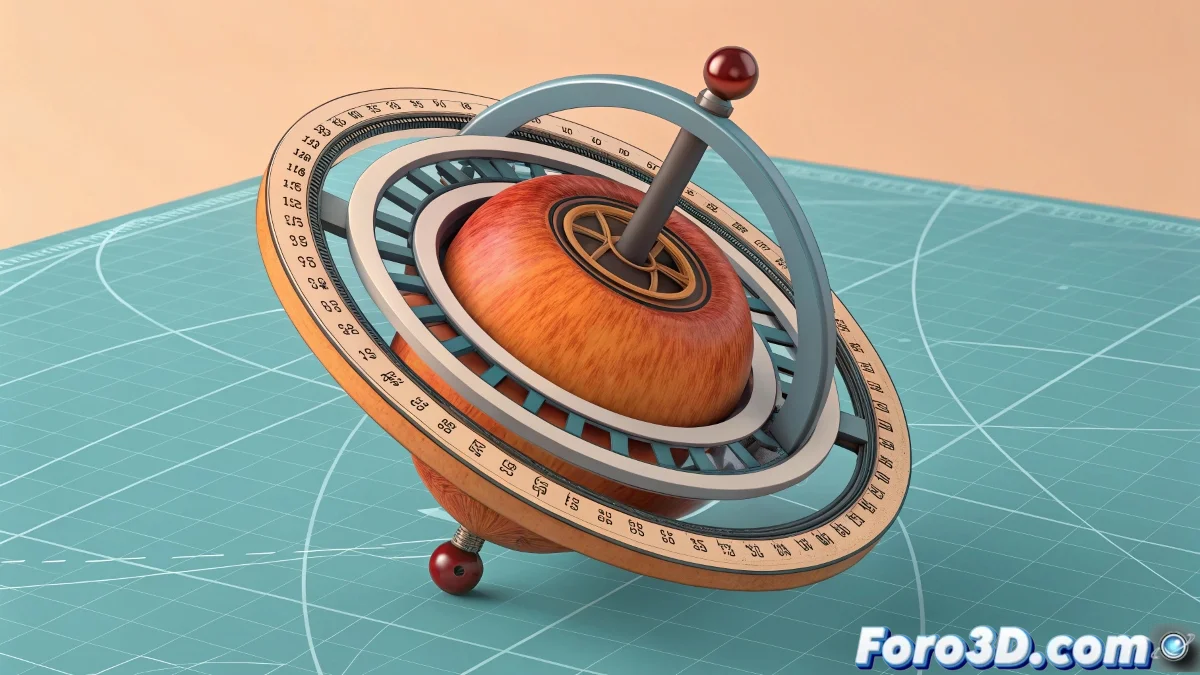
The Mystery of the Runaway Axis in Cinema 4D
Importing a beautiful path from Illustrator to Cinema 4D should be a moment of joy, but it often turns into a nightmare of crazy rotations 🎠. The object, instead of rotating gracefully around its own center, decides to dance around an invisible point in another galaxy. This common problem occurs because the coordinate systems and pivot management between the two programs don't always get along. Fortunately, Cinema 4D offers specific tools to tame these rebellious axes.
Taming the Axis with Enable Axis Modification
The most direct and controlled solution is to use the Enable Axis Modification tool. By pressing the L key (or clicking its icon), a special mode is activated where you can manipulate the rotation axis—the pivot—independently from the object's geometry. 🎯 This allows you to grab the axis with the move tools and place it exactly where it should be: at the geometric center of the path or at any other point you need for your animation. Once positioned, you simply deactivate the mode and everything returns to normal.
A misplaced axis is like a drunk orchestra conductor, everyone spins but no one knows why.
The Magic of Automatic Centering with Axis Center
For those who prefer a quick and automated solution, the Axis Center function is the answer. Available in the tools menu or as a plugin in some versions, this option analyzes the object's geometry and automatically repositions the axis based on predefined criteria. You can choose to center it on the bounding box, the center of mass, or even a specific point on the mesh. It's ideal for fast workflows where millimeter precision is not critical.
Best Practices for a Trouble-Free Workflow
Prevention is better than cure, and this totally applies to axis management. Adopting these habits will save you many headaches:
- Early Review: check the axis position immediately after importing any asset.
- Unit Consistency: configure the same units of measurement in Illustrator and Cinema 4D before exporting/importing.
- Smart Groups: if you work with multiple objects, grouping them and centering the group's axis can simplify animations.
- Import Templates: create base scenes with preset configurations for importing paths.
With these techniques, your rotations will be as smooth and predictable as a ballerina's spin. And if any axis still misbehaves, you can always say it's an artistic feature of abstract animation 😉.