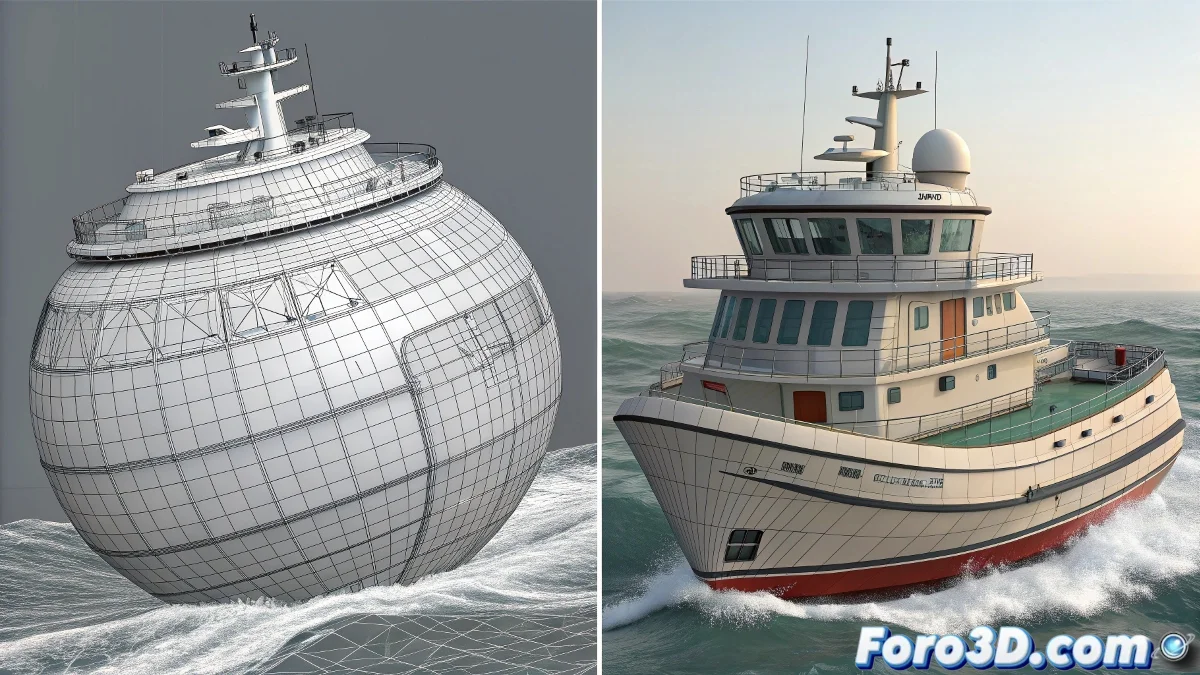
When Objects Decide to Grow Without Permission
The problem of scale changing mysteriously when exporting from RealFlow to 3ds Max is one of those classic headaches that affects almost all users at some point. The frustration is understandable when you've achieved a perfect simulation in RealFlow, only to discover that when importing it into 3ds Max, your object has turned into a disproportionately giant or, worse still, an almost invisible point. This problem usually originates from unit incompatibility between both programs.
The fact that you're working with SD and Real Wave objects indicates that you're handling complex scenes, where any scale error can ruin hours of work. The good news is that it has a solution and is generally resolved with specific adjustments.
Unit Configuration Between RealFlow and 3ds Max
The first critical step is to verify that the units are consistent in both programs. In 3ds Max, go to Customize > Units Setup and make sure to use System Units Setup with the same configuration as in RealFlow. The safest is to use centimeters or meters in both softwares.
In RealFlow, check the units in File > Preferences > Units. If you're working in centimeters in 3ds Max, configure RealFlow to use the same unit. Unit inconsistency is the cause of 90% of scale problems in export.
- Identical units in both programs
- Metric system preferable (centimeters or meters)
- Check system units in 3ds Max
- Unit configuration in RealFlow preferences
A perfect export is like a good translator: it maintains the meaning while changing the format
Correct Export Method for SD Objects
When exporting from RealFlow, use the BinMesh (.bin) format instead of standard SD for animated objects. The BinMesh format better preserves transformations and scale. In the export dialog, select Export > Rigid Bodies and choose BinMesh as the format.
In the export options, enable Export Transformations and disable Apply Scale. This ensures that RealFlow sends position and rotation data without modifying the object's scale. Also verify that the World Coordinates option is enabled.
- BinMesh format for animated objects
- Export transformations enabled
- Apply scale disabled
- World coordinates enabled
Correct Import in 3ds Max
In 3ds Max, do not use the standard import method. Instead, use the RealFlow Scene Loader that comes included. Go to Utilities > More > RealFlow Scene Loader. This loader is specifically designed to correctly interpret RealFlow data.
In the Scene Loader, verify that the Scale Factor option is set to 1.0. Many users mistakenly change this value, causing scale problems. Also ensure that Animated Objects is enabled and that you're loading the correct .bin file.
- Use RealFlow Scene Loader, not standard import
- Scale factor at 1.0
- Animated objects enabled
- Load .bin file, not .sd
Alternative Solution with Scale Reset
If the problem persists, there is an alternative method that usually works. After importing the object, select it and apply a Reset XForm. Go to Utilities > Reset XForm and then convert the object to Editable Poly. This resets the transformations and can correct inherited scale issues.
Another technique is to use the RealFlow Scale Script that comes with the plugin. This script is specifically designed to fix scale issues between RealFlow and 3ds Max. Look for it in the RealFlow scripts folder within 3ds Max.
- Reset XForm to correct transformations
- Conversion to Editable Poly after reset
- RealFlow scale script
- Check imported object hierarchy
Preventing the Problem in Future Projects
To avoid this problem in the future, establish a standardized workflow. Always start by configuring the units in both programs before beginning any project. Create a scene template in 3ds Max with the correct units and use it as the base for all your RealFlow-involved projects.
Also consider using the standard meter system (1 unit = 1 meter), which is the most compatible between different 3D softwares. This convention is widely accepted and significantly reduces compatibility issues.
- Scene template with preconfigured units
- 1 unit = 1 meter system
- Configuration checklist before exporting
- Configuration documentation for team
Solving this problem will save you hours of frustration and allow you to focus on what really matters: creating spectacular simulations that work perfectly between RealFlow and 3ds Max. Because in software integration, consistency in configuration is the key to success 😏