Imagine you're working on a 3D project in Blender, but you need to polish the details of the textures or images you're using. Instead of being limited to the tools inside Blender, you can leverage external programs like Photoshop or Krita to enhance those visual elements.
What you need to do is set up your project so that Blender "knows" how to communicate with these programs. It's not as difficult as it seems. First, you must configure the paths of your images within Blender, which will make the program know exactly where to find those files. Then, you can edit the images in your favorite programs, like Krita or Photoshop, without worrying about losing the connection with the 3D project.
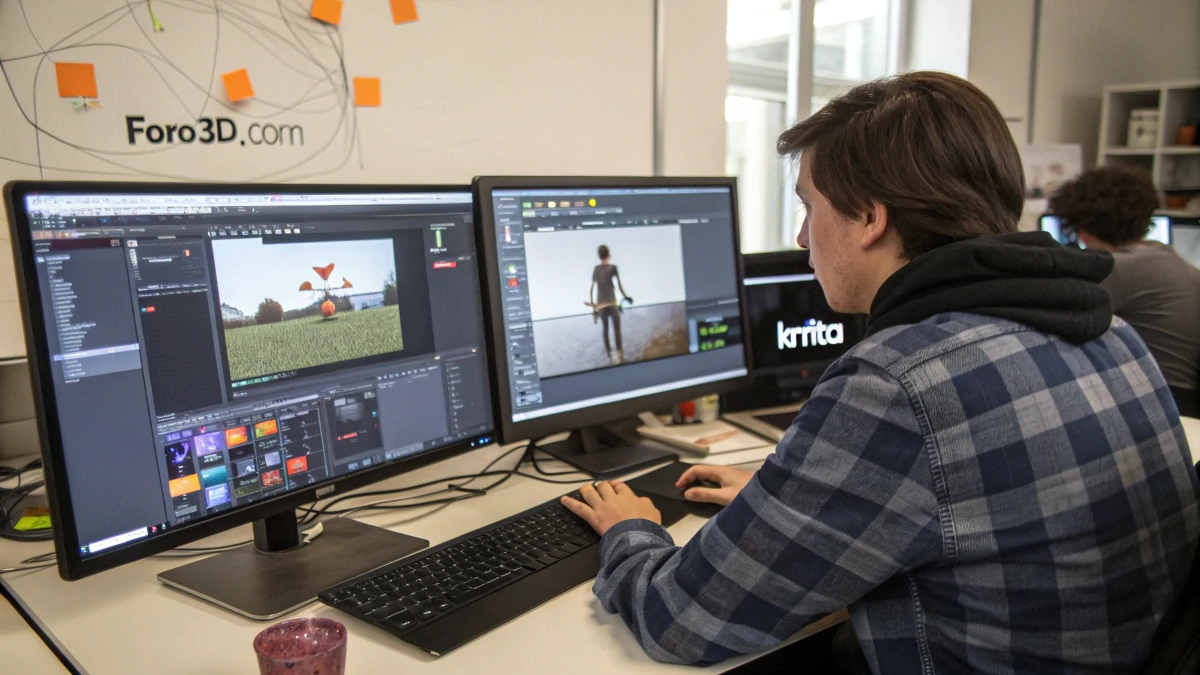
Sometimes, you might encounter issues like images not updating correctly after making changes in the external editor. Don't worry! There are simple solutions to keep everything running smoothly. And if you want, you can also export images directly from Blender's 3D viewport to work on them outside the program.
Steps to Connect Blender with External Programs
Step 1: Prepare Your Project in Blender
First, open your project in Blender. If you already have some textures or images you want to improve, make sure they are properly added to your project. The images must be well located in your working folder.
Step 2: Configure Blender to Work with External Programs
Now, you need to tell Blender which programs you want to use to edit those images. If you're using programs like Photoshop, Krita, or GIMP, you can configure Blender to work with them seamlessly. Go to Blender's preferences, in the File Paths section, and set the paths where Blender will save and look for your images.
Step 3: Edit Images in Photoshop, Krita, or GIMP
Once configured, simply click on the image in Blender that you want to edit and open your chosen program (like Photoshop or Krita). Done! Now you can edit the image as you normally would, adjusting colors, textures, or any details you need.
Step 4: Return to Blender and Update Your Work
When you're done editing the image, save the changes and return to Blender. The image should update automatically, reflecting the changes you made. If something doesn't update immediately, make sure the paths and files are properly configured.
Extra Tip: Export Directly from the 3D Viewport
If you prefer to work directly with the images you see in Blender's 3D viewport, you can export them to edit externally. Just go to the render view and choose to export the image. Then, you can edit it without issues in your external editor.
This way, Blender and your external editing tools will work together to improve your workflow. It's like having the best of both worlds: the power of 3D editing and the precision of specialized tools for fine image retouching. Plus, you can discuss and share your techniques and results in communities like foro3d.com, where you can learn more and help others improve their projects.