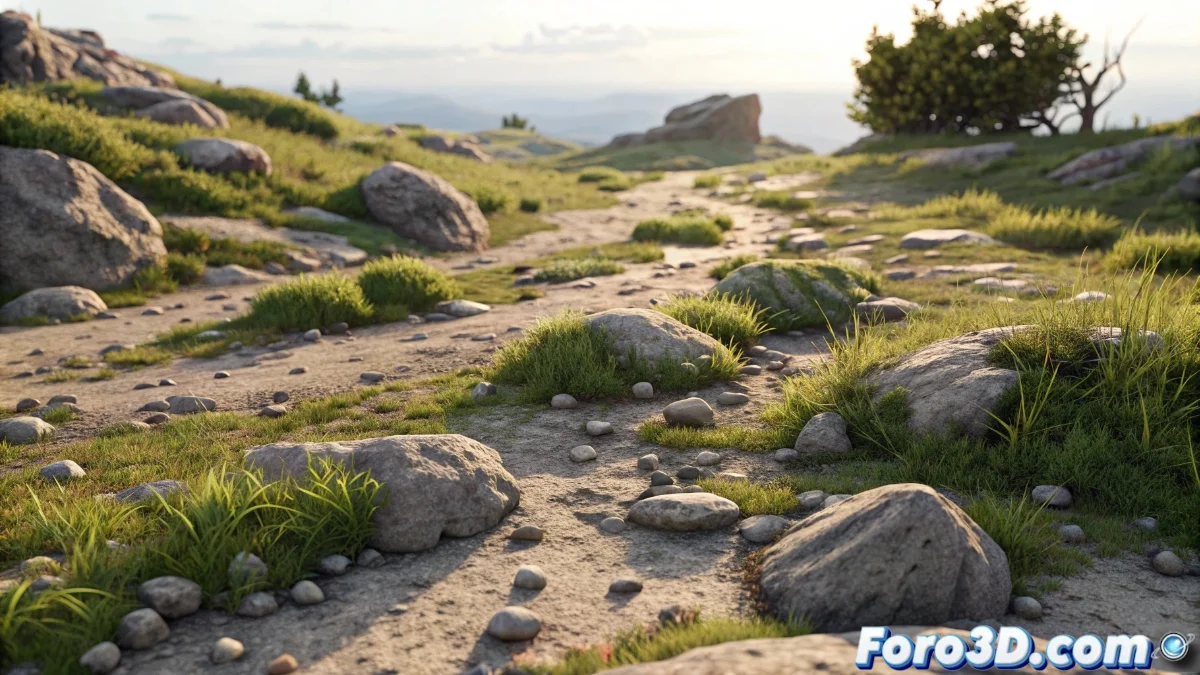
Complete Guide to the Scatter on Surface Modifier in Blender 5
The Scatter on Surface modifier is a powerful tool in Blender 5 that allows you to distribute multiple instances over the surface of any base object. Ideal for creating detailed landscapes, dense vegetation, or repetitive decorative elements without manual effort. 🎯
Initial Setup and Object Selection
To get started, select the base object where you want to scatter the additional elements. Go to the modifiers panel and add specifically Scatter on Surface, which will deploy all the necessary options to customize the distribution. Make sure to correctly select the object to instantiate and adjust the basic parameters from the start. 🔧
Essential setup steps:- Select the base object and add the modifier from the corresponding panel
- Define the element to instantiate and adjust the density to control the quantity
- Modify scale and rotation to introduce natural visual variations
The Scatter on Surface modifier transforms simple surfaces into complex and detailed scenes with just a few clicks.
Advanced Customization with Textures and Attributes
When you need more precise control over the distribution, use custom textures or attributes to direct where and how the instances appear. Blender 5 allows real-time preview of changes, facilitating iterative adjustments until the desired effect is achieved. Experiment with different settings to obtain unique results. 🌟
Advanced customization options:- Apply textures to control density in specific areas of the surface
- Use custom attributes to vary scale, rotation, or visibility
- Adjust alignment so that instances naturally follow the curvature of the base object
Final Application and Practical Considerations
Once satisfied with the result, you can apply the modifier to convert the instances into permanent geometry or keep it active for future modifications. This flexibility is ideal for iterative workflows. Remember that, although you can create amazing digital botanical gardens, the instances won't grow over time—so don't expect to have to water them. 💡