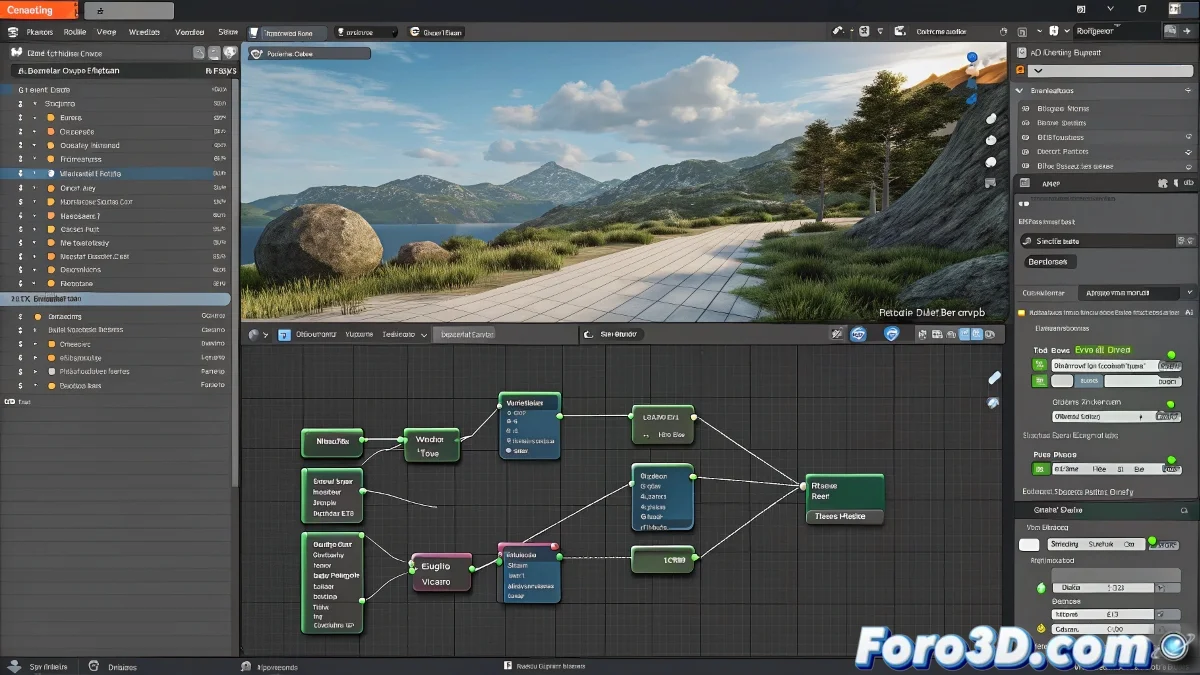
When YafRay Decides Not to Keep Up
Animating materials for YafRay in Blender can feel like teaching choreography to a piece of furniture... if you don't know its quirks. 🛋️ Here's the manual no one gave you to make your shaders come alive in this render engine.
The Fundamental Problem
- YafRay ignores Blender's standard Ipos
- It only responds to animated parameters in its own shaders
- It requires a direct approach to its native properties
Professional Step-by-Step Solution
- Access the YafRay materials panel (not the standard one)
- Identify the animatable parameters (transparency, bump, reflectivity)
- Insert keyframes directly into these values
- Use the curve editor to refine the interpolation
In YafRay, animating materials is like programming a VHS: it must be done in the language the machine understands, not the one you prefer.
Advanced Tricks for Total Control
| Effect | YafRay Method |
|---|---|
| Variable Transparency | Animate "Alpha" in the Glass shader |
| Dynamic Bump | Control "Bump Strength" with drivers |
| Changing Reflections | Keyframes in "Specular Reflect" |
Common Mistakes and How to Avoid Them
- Don't use generic Ipos - YafRay will ignore them
- Check previews - The viewport doesn't show the real changes
- Render tests - Only the final render shows the animation
Revealing fact: 90% of YafRay animation problems are solved by animating parameters in the specific YafRay Materials panel, not in Blender's standard materials. The remaining 10% requires coffee and patience. ☕
Now that you master this arcane knowledge, your YafRay materials will be able to dance, transform, and evolve... just as you planned. And when that transparency effect finally works in the render, you'll know it was worth the effort. 🎉
Bonus tip: For complex effects, consider using animated textures that YafRay does interpret correctly, like image sequences to control bump or transparency.