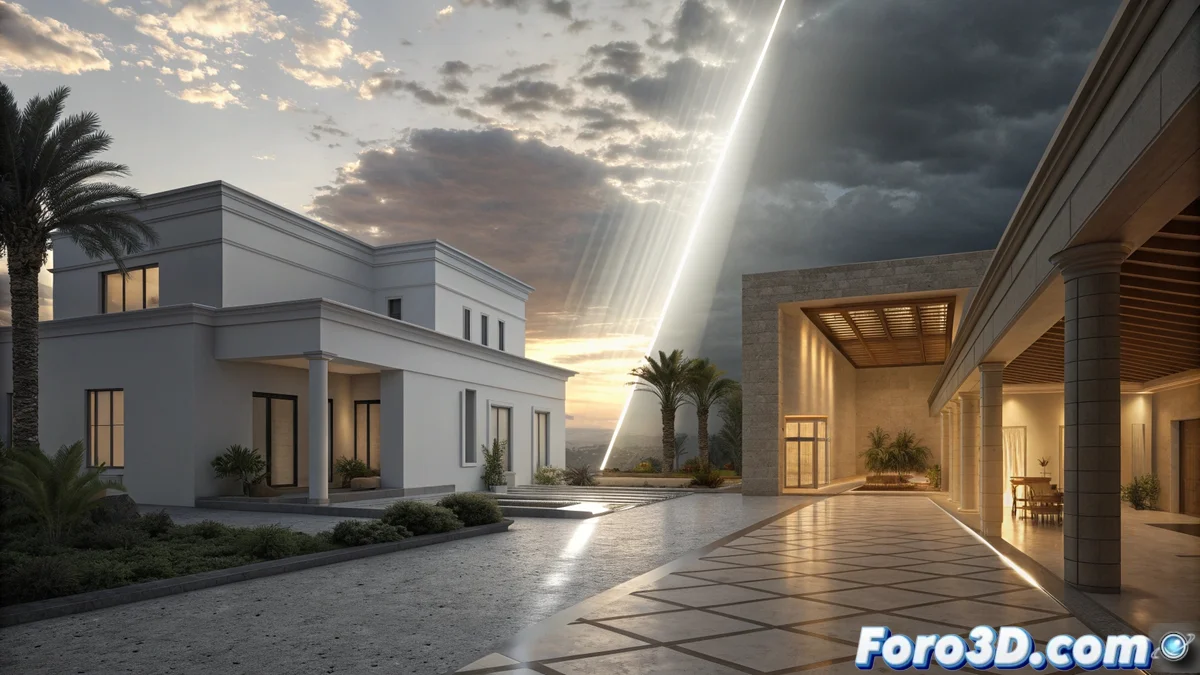
Compare How to Light in Sketchup with Enscape and Lumion
To visualize architectural projects realistically, lighting correctly is essential. Two popular paths from Sketchup are using the Enscape plugin or exporting the model to Lumion. Although both simulate natural and artificial light, their methods and final results differ notably in how they calculate light, interact with materials, and create the atmosphere. 🔦
Enscape: Real-Time Rendering Inside Sketchup
Enscape operates as an extension integrated directly into the Sketchup interface. This allows for an immediate preview of any changes in lighting. Its engine uses real-time global illumination, which efficiently calculates how light bounces, generating soft reflections and shadows instantly. It is very accurate for physically simulating the sun and sky, and responds well when you adjust the intensity or color of lights. For artificial light, it relies on the materials and lighting components that already exist in Sketchup, keeping the entire process within a single program.
Main features of lighting with Enscape:- Native integration: Works as a viewer inside Sketchup, no need to export.
- Physical light calculation: Accurately simulates the behavior of sunlight and ambient light.
- Unified workflow: Uses Sketchup's lights and materials, no external objects.
The main advantage of Enscape is instant feedback; you change a parameter and see the result immediately in your model.
Lumion: A Dedicated Environment for Visual Effects
Lumion requires exporting the model from Sketchup to its own software. Its engine prioritizes rendering speed and powerful visual impact, using many predefined settings. It offers extensive control over the overall atmosphere, with effects like volumetric light, fog, and a dynamic sky that directly influences the scene's lighting. Artificial lights are independent objects added from Lumion's extensive library, with presets like recessed spotlights or LED strips. Its approach to global illumination is usually more artistic and less strictly physical than Enscape's, making it easier to intuitively create a specific mood.
Main features of lighting with Lumion:- Specialized environment: You work in a separate program with its own asset library.
- Atmospheric effects: Advanced control over fog, clouds, and volumetric light to create ambiance.
- Light library: Add artificial lights from a collection of objects and presets.
Choose Based on the Project and Workflow
The choice between Enscape and Lumion depends on what you need to prioritize. Enscape is ideal for an iterative and fast workflow within Sketchup, where physical accuracy and immediacy are key. Lumion shines when you seek a visually spectacular result with little effort, leveraging its effects and presets. A user might spend a lot of time adjusting the sun angle in one software to achieve an effect that, in the other, is accomplished in two clicks with a preset like "Nordic sunset." Understanding these differences helps you select the tool that best fits your way of working and the visual goal of your project. 🏗️