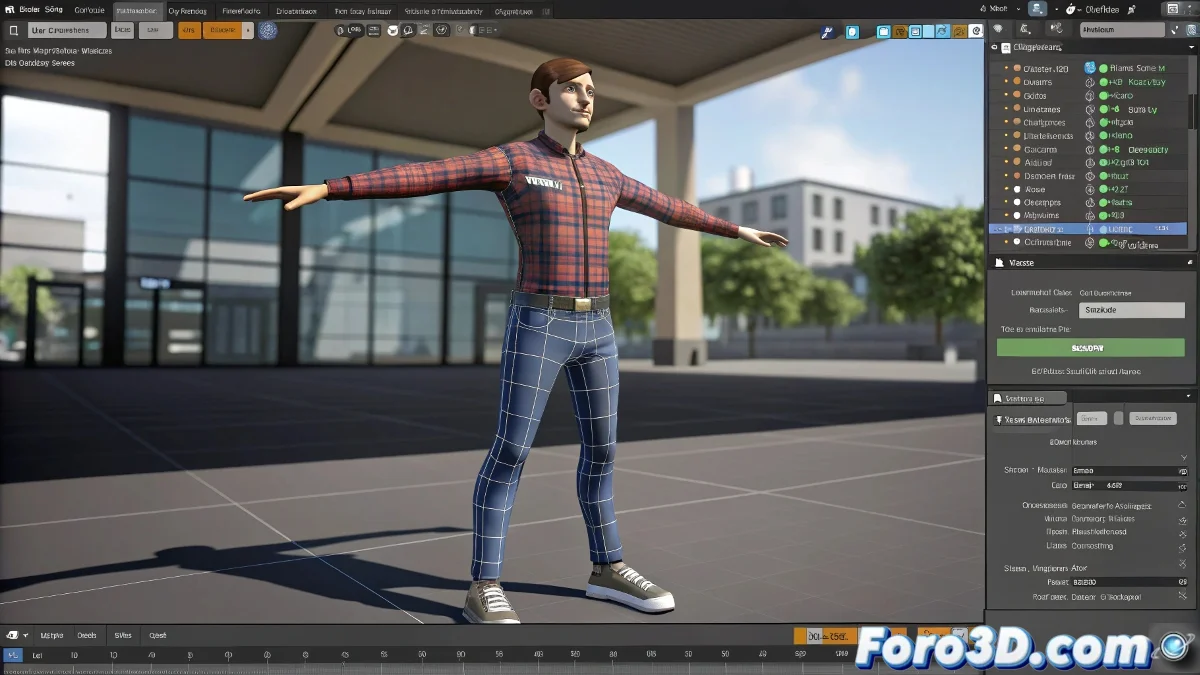
When Your 3D Character Learns to Dance Without Your Permission 💃
In the fascinating world of Biped animation, applying a .bip file can be like teaching your character complete choreographies with a single click. Well, at least in theory. Because when things go wrong, you can end up with a character that moves as if it's having a hiccup attack.
The Sacred Ritual of Loading Bip Files
For your character to adopt new poses without looking like a rag doll, follow these steps:
- Make sure your model is rigged with Biped (this doesn't work with custom skeletons)
- Select the Biped and go to the Motion panel (which appears as if by magic)
- Look for the Load File button in the Biped rollout section
- Select your .bip file and pray that the 3D gods are in a good mood
"A well-applied .bip file is like a tailored suit: if it's not your size, it will make you look ridiculous."
The Seven Deadly Sins of Biped
To prevent your character from ending up moving like an extra from The Walking Dead, avoid these mistakes:
- Trying to use a .bip on a skeleton that isn't Biped
- Manually scaling the character after rigging
- Using files from characters with different bone structures
- Ignoring the scale warnings that 3ds Max shows you
When the Magic Doesn't Work
If your character seems possessed after applying the .bip, check these points:
- Does the bone structure match the original file?
- Have you modified the character's scale after creating the rig?
- Is the .bip file corrupt or incompatible with your version?
Remember that Bipeds are like dance partners: they need to understand each other to move in harmony. If your character ends up breakdancing when you only wanted it to walk, maybe it's time to reconsider your life choices. Or at least, to review the bone structure. 🕺
And now, if you'll excuse me, I'm going to try to get this character to stop turning its head like an overexcited owl. Pro tip: if you see it start spitting green peas, close the program and go get some air. 😵💫