The Art of Taming Rebellious Edges in Cinema 4D ✨🔧
Trying to animate edges directly in Cinema 4D is like trying to paint a picture by moving the canvas instead of the brush. The program has its own logic, and understanding it is key to deforming meshes like a pro without losing your sanity.
The 3 Foolproof Methods for Animating Points and Edges
| Method | Advantages | Ideal For |
|---|---|---|
| FFD (Free Form Deformer) | Non-destructive deformation Volume-based control |
General impacts Organic deformations |
| Pose Morph (Points mode) | Point-by-point precision Controlled interpolation |
Facial expressions Specific deformations |
| Correction Deformer | Direct mesh editing Keyframeable |
Local adjustments Targeted corrections |
"In the 3D world, you can't animate what isn't designed to be animated... but there's always a deformer that makes it possible"
Professional Step-by-Step Workflow
- Prepare your model:
- Ensure it has enough geometry to deform
- Separate areas that will need independent movement
- Choose your deformation weapon:
- For general deformations → FFD
- For millimeter precision → Pose Morph
- For on-the-fly adjustments → Correction Deformer
- Animate intelligently:
- Use animation curves to smooth transitions
- Combine methods for complex results
Tricks Not in the Manual
- FFD Shortcut: Use fields to automate deformations
- Pose Morph Pro Tip: Create a library of reusable poses
- Correction Deformer Hack: Animate the deformer's intensity
- Plan B: If all else fails, clone and blend objects
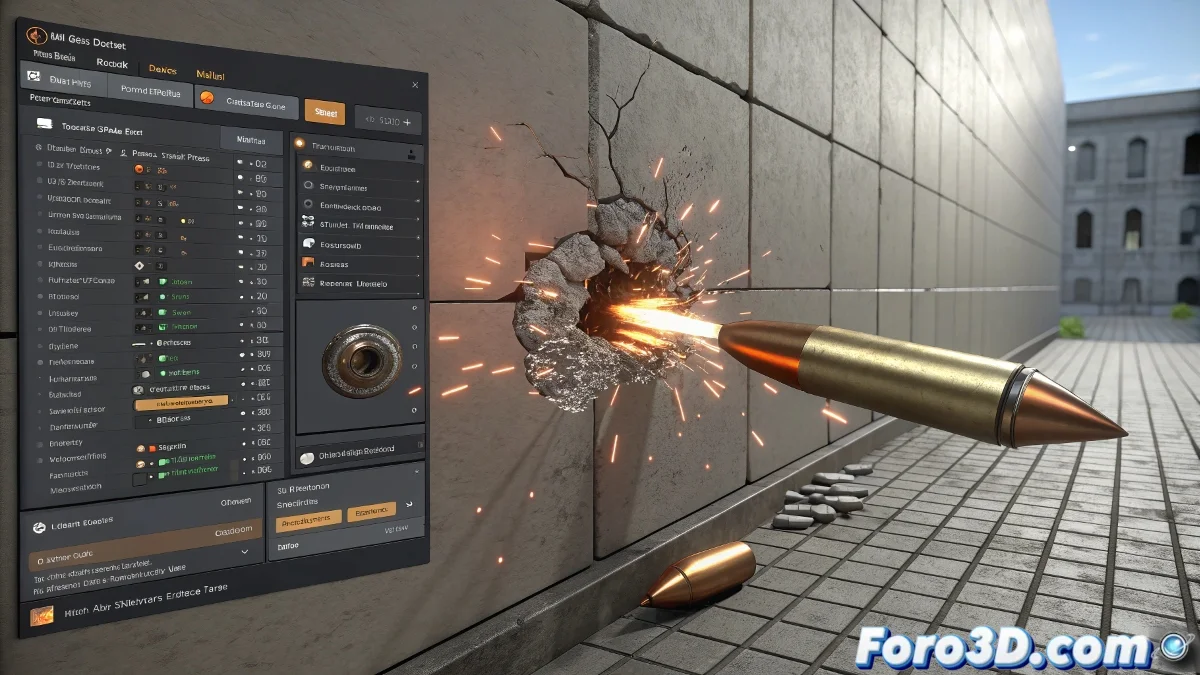
And remember: if your bullet impact looks more like a deflating balloon than a ballistic effect, you can always say it's an artistic style. After all, in the 3D world as in art, sometimes "mistakes" are just unplanned special effects 💥.