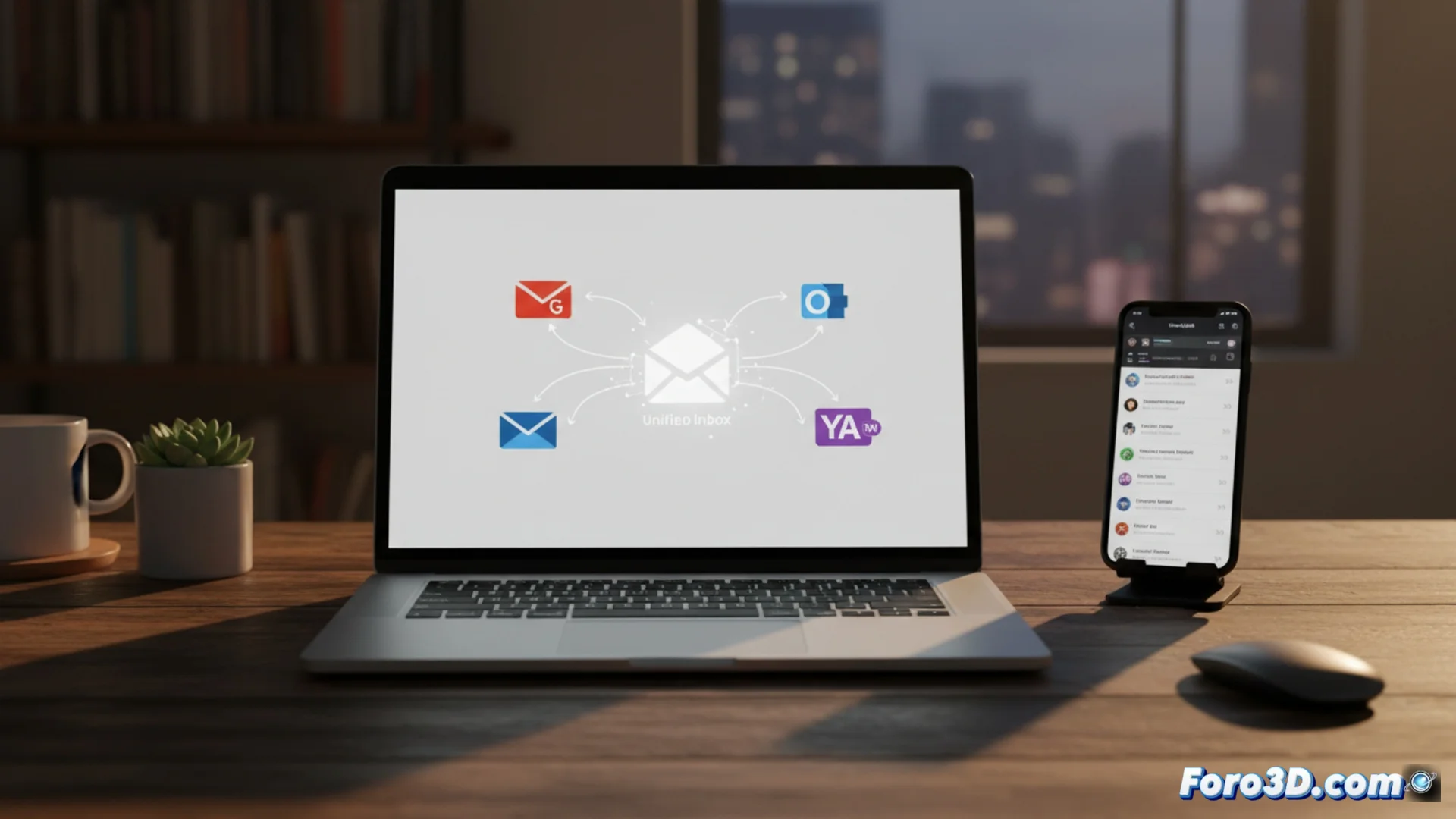
Alternatives for managing external email accounts
The Gmailify feature is used to connect accounts from other services, such as Outlook or Yahoo, to the Gmail environment. This helps centralize email in a single place. However, this tool has evident limitations, as it only works with specific providers and does not provide the same level of integration as a pure Gmail account. For this reason, many users explore more flexible and powerful options to consolidate their messages. 📧
Setting up automatic message forwarding
A simple strategy is to enable automatic forwarding from the external email account to a main Gmail address. Almost all email services allow this in their settings. Once implemented, all new emails will appear in the Gmail inbox. Subsequently, Gmail can be configured to reply using the original email address. This approach mimics a complete merger, although it requires two settings: forwarding and defining the sending identity.
Key steps to implement this solution:- Access the external email account settings (e.g., Outlook, Yahoo) and look for the "forwarding" option.
- Specify the destination Gmail address where all messages should arrive automatically.
- Within Gmail, add the external address as an "alias" or sending identity to be able to reply from it.
Searching for the perfect single inbox sometimes feels like chasing a unicorn: everyone talks about it, but in the end you end up managing five open browser tabs.
Opting for a desktop email client
Applications like Mozilla Thunderbird, Microsoft Outlook, or Mailbird offer a more robust alternative. These programs can manage multiple accounts from different providers simultaneously. The user can view all their inboxes merged in a single window or keep them separate, according to preference. These clients typically provide more control over rules for filtering, organizing folders, and handling emails without needing a web browser. 💻
Advantages of using a desktop client:- Centralized management of multiple accounts from a single program interface.
- Greater control to create advanced filtering and organization rules.
- Independence from the web browser and possibility of offline work.
Evaluating the best option for you
The choice between using forwarding or installing a desktop client depends on each person's specific needs. Forwarding is quick and keeps everything within the Gmail ecosystem, while a desktop client offers deeper and more professional control over the email flow. Evaluating the volume of messages and the level of customization required will be key to deciding. In the end, it's about finding the balance between simplicity and power to optimize your daily productivity.