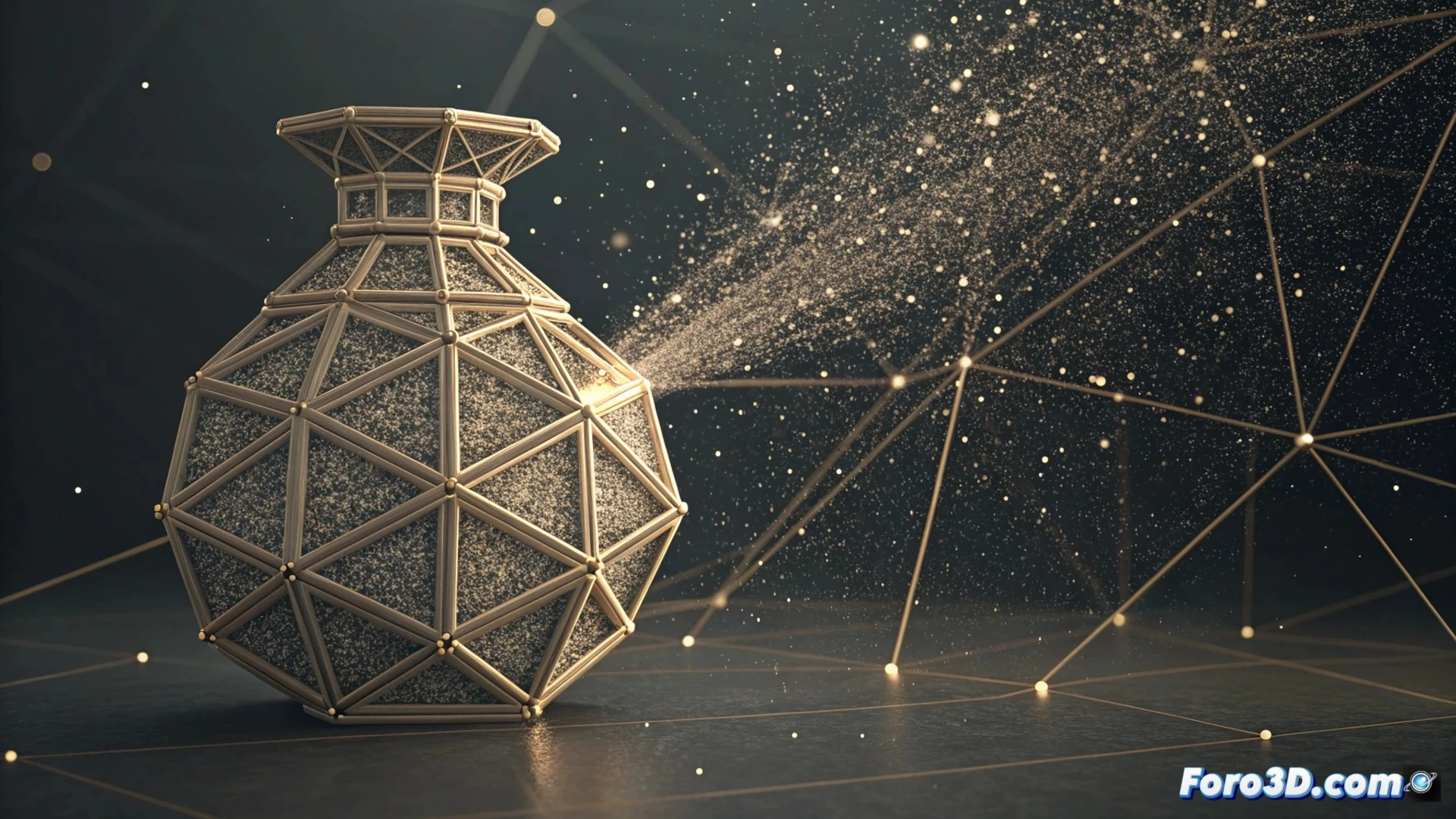
How to make an object fade in Houdini
Achieving a convincing fade-out of an object in a Houdini animation is a common task. There are several approaches, from manipulating the material's transparency to completely deleting the geometry. Choosing the right method depends on the final visual effect you're aiming for. 🎬
Manipulating the material's opacity
A widely used technique is to animate the opacity or alpha attribute of the material assigned to the object. For this, you can use an Attribute Wrangle node or a Parameter VOP. Within them, you define how the value changes over time, using, for example, an interpolation ramp or a mathematical expression, which allows for a progressive and controlled fade.
Key steps with Attribute Wrangle:- Add an Attribute Wrangle node to your geometry network.
- In the VEX field, write code like @Alpha = fit(@Time, start, end, 1.0, 0.0); so that the transparency goes from visible to invisible between two frames.
- Ensure your surface material is configured to read the Alpha or Opacity attribute you've just modified.
Animating the scale to zero is a common mistake; the object may still cast shadows. It's more effective to control opacity or delete the geometry directly.
Deleting the geometry permanently
If you need the object not only to become transparent but to disappear completely from the render, you must delete its components. The Blast node is ideal for this task. You can animate its Group Mask parameter or define a dynamic group based on attributes like point number (@ptnum) or Y position (@P.y).
Alternatives for complex disappearance:- Use a Solver node to process the deletion of points or polygons cumulatively each frame, simulating erosion or disintegration.
- Combine the Group node with expressions to isolate the geometry you want to delete at a specific moment in the animation.
- For more organic effects, you can use an attribute like @age or @life in particle systems to control when they are removed.
Final tips for a clean result
Planning how an object disappears is crucial. Manipulating opacity is perfect for fades and smooth transitions, while deleting geometry solves cases where no visual trace should remain. Avoid methods that leave "ghosts" in the render and always test your scene with the final render engine. Mastering these techniques gives you total control over visibility in your animations. 💡