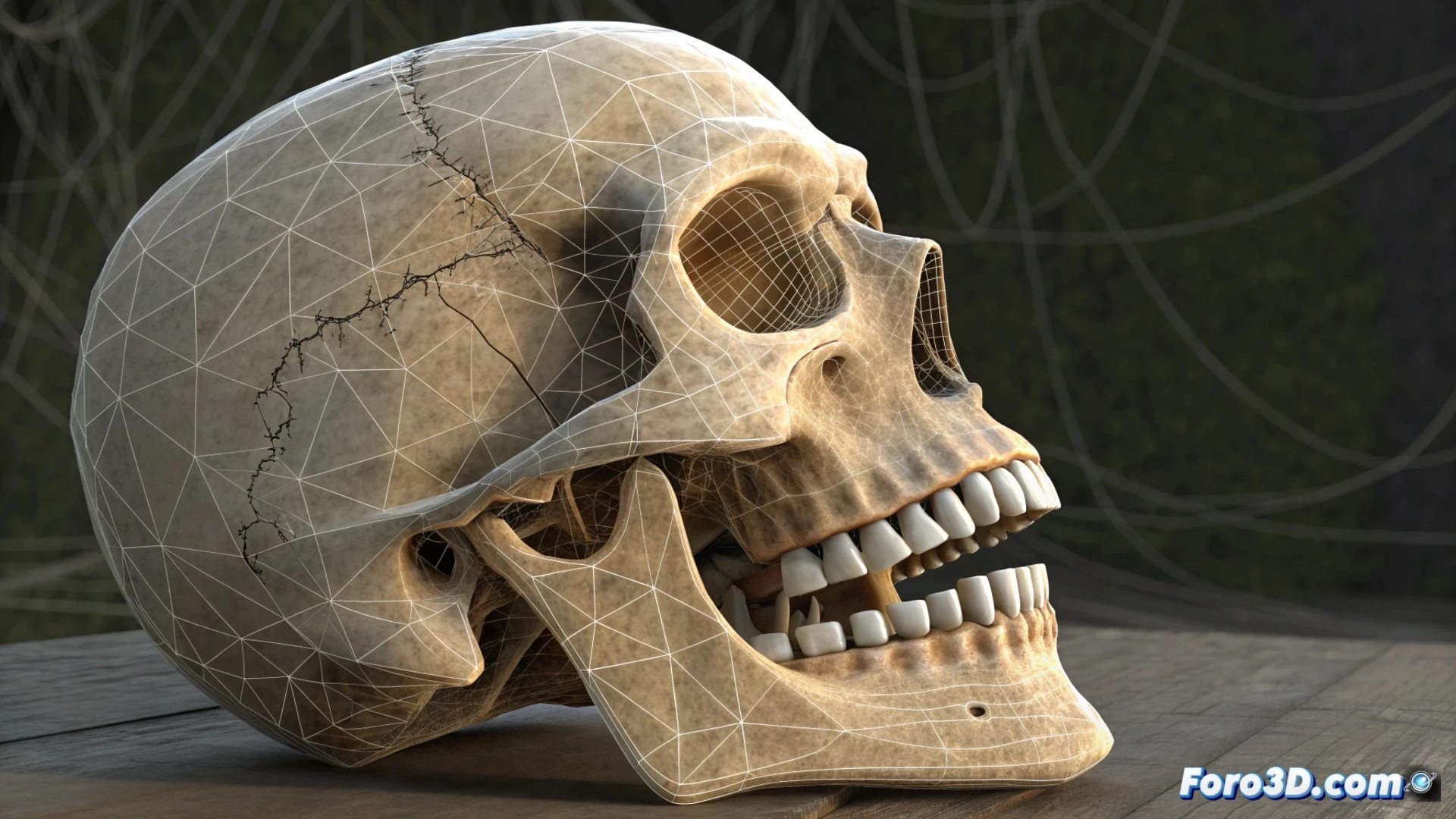
Animating Teeth with Morph in Blender
Bringing a character's teeth to life is a key step for animating realistic facial expressions. Using Blender's Morph or Shape Keys system allows precise control of their movement, from a smile to opening the mouth. 🦷
Prepare the Model and Create the Shapes
The first step is to isolate the dental geometry. Ensure the teeth are an independent mesh from the head. This makes it easier to manipulate them without affecting other parts. Then, define a base shape (initial position) and one or more target shapes for each action you need to simulate.
Process to set up shape keys:- In Edit mode, model the final position the teeth will have for a specific expression.
- In the Shape Keys tab, add a new key and assign the shape you modeled as the target.
- Repeat this to create different morphs, such as separating the teeth when smiling or moving them with the jaw.
An unnatural dental movement can distract the viewer, similar to an actor trying to speak with a full mouth.
Animate and Control the Influence
With the shape keys created, the next step is to animate their influence over time. In the timeline, insert keyframes in the influence values of each shape key. This determines when and how much each morph is activated, allowing smooth transitions between expressions.
Integrate the dental animation into the rig:- To make the teeth move in harmony with the mouth, link their shape keys to the rig's bones, such as the jaw.
- Use Drivers or constraints like Copy Transforms to establish this connection automatically.
- This synchronization avoids having to animate the teeth manually and separately.
Verify and Adjust the Final Result
It is crucial to review the deformation throughout the animated sequence. Adjust the shape keys' weights and interpolation type to prevent the teeth from intersecting with the lips or gums. A thorough test on several frames ensures that the movement complements, and does not ruin, the character's facial performance. A small detail, like well-animated teeth, adds a great dose of realism. ✅